Display Authorization Details on Batch Operations - Folio Tab
The Folio tab on the Batch Operations screen is enhanced to display the following authorization details of a reservation:
-
The current amount authorized
-
The expected authorization amount required to cover the remainder of the stay
-
The amount that is greater/lesser than the expected authorized amount
The following columns on the Folio tab displays the authorization details of the reservations:
|
Field |
Description |
|---|---|
|
Reservation |
Displays the confirmation ID of the reservation as a hyperlink. When clicked, the users are navigated to the corresponding Reservation screen. This column can be sorted. |
|
Room Type |
Displays the room type code for the room assigned to the reservation. This column can be sorted. |
|
Room |
Displays the room number of the room assigned to the reservation. This column can be sorted. |
|
Building |
Displays the name of the building where the room is located. This column can be sorted. |
|
Guest Name |
Displays the guest’s name associated with the reservation. This column can be sorted. |
|
Status |
Displays the status of the reservation. Users can filter records based on the status. This column can be sorted. |
|
Email Address |
Displays the email address associated with the guest profile of the reservation. This column can be sorted. |
|
Last Sent |
Displays the time when the folio was last emailed to guests. This column can be sorted. |
|
Payment Method |
When the same payment method is attached to multiple folios:
|
|
Guest Balance |
When there are multiple folios in a reservation:
|
|
Total Projected Balance |
Displays the total estimated/projected charges to be posted to the folios. When the same payment method is attached to all the folios:
|
|
Authorized |
When the same payment method is attached to all the folios:
|
|
To Authorize |
This field is calculated by comparing the total projected charge vs the authorized amount. When the same payment method is attached to all the folios:
|
|
Auth State |
When the same payment method is attached to all the folios:
|
|
Last Attempt |
Displays the time when the authorized amount was collected. When the same payment method is attached to all the folios:
|
|
State |
When the same payment method is attached to all the folios:
|
|
Reason |
Displays the reason for failure in collecting the authorized amount. |
Column Customization
Users with the Stay_BatchFolioColumnPreferences permission can configure the list of columns to be displayed on the Folio tab. Users can customize the columns by clicking on More ➜ Set Column Preference option. When clicked, the Set Column Preference screen appears that allows users to select/deselect the following columns.
-
Room Type
-
Room
-
Building
-
Group
-
Payment Method
-
Guest Balance
-
Total Projected Charge/Balance
-
Authorized
-
To Authorize
-
Auth State
-
Last Attempt
-
Reason
-
Status
-
Email Address
-
Last Sent
Users cannot deselect the following columns that are selected by default:
-
Reservation
-
Guest Name
The selected columns are displayed only to the user who has customized them. They are not displayed when a different user logs in.
Authorize Cards
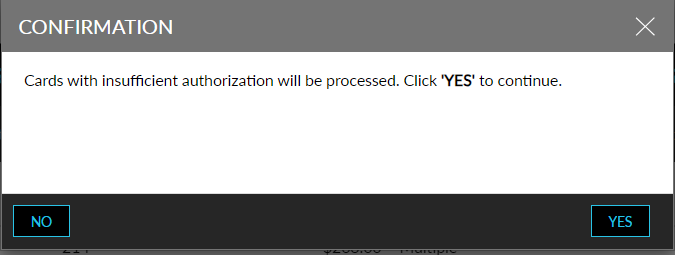
Users can initiate the authorization for the payment method that does not have sufficient authorization by clicking on More ➜ Authorize Cards. When clicked, a Confirmation pop-up screen appears. When users click Yes, the system completes the authorization process for the credit cards with insufficient authorization.
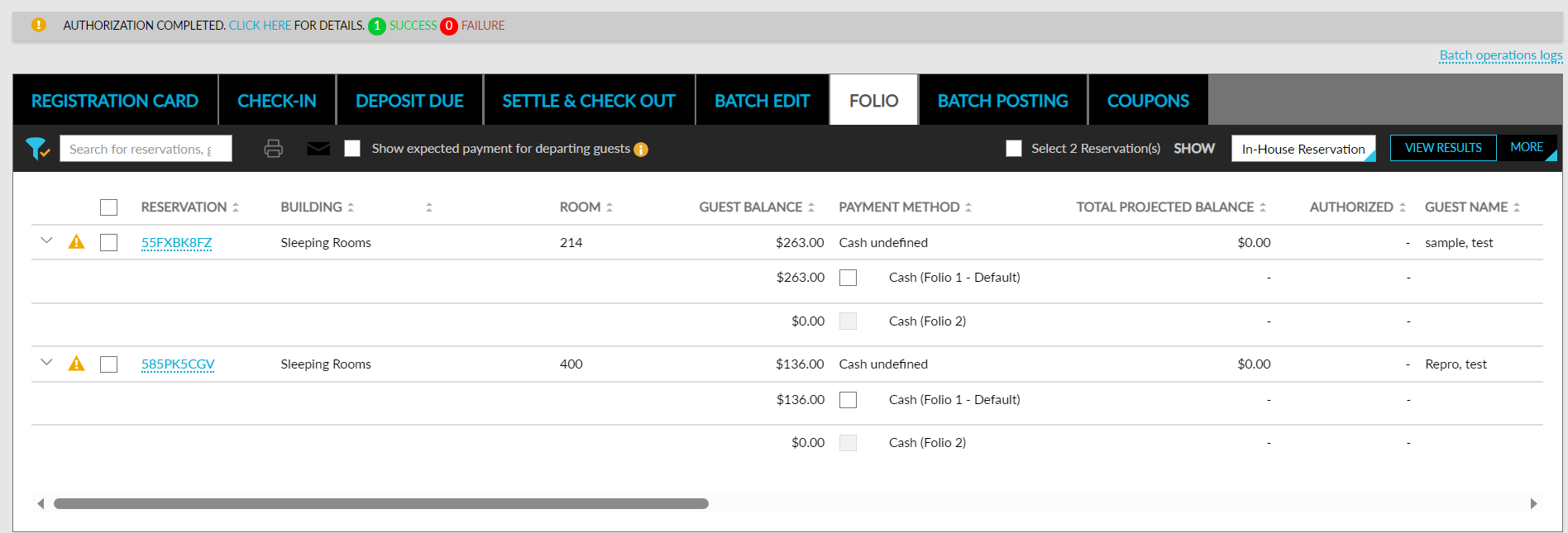
Once the authorization is completed successfully, the following columns are updated on the Folio tab:
-
Authorized
-
To Authorize
-
Auth State
-
Last Attempt
-
State
-
Last Auth Amount
When authorization fails, the following columns are updated:
-
Auth State
-
Last Attempt
-
State
-
Last Auth Amount
-
Reason
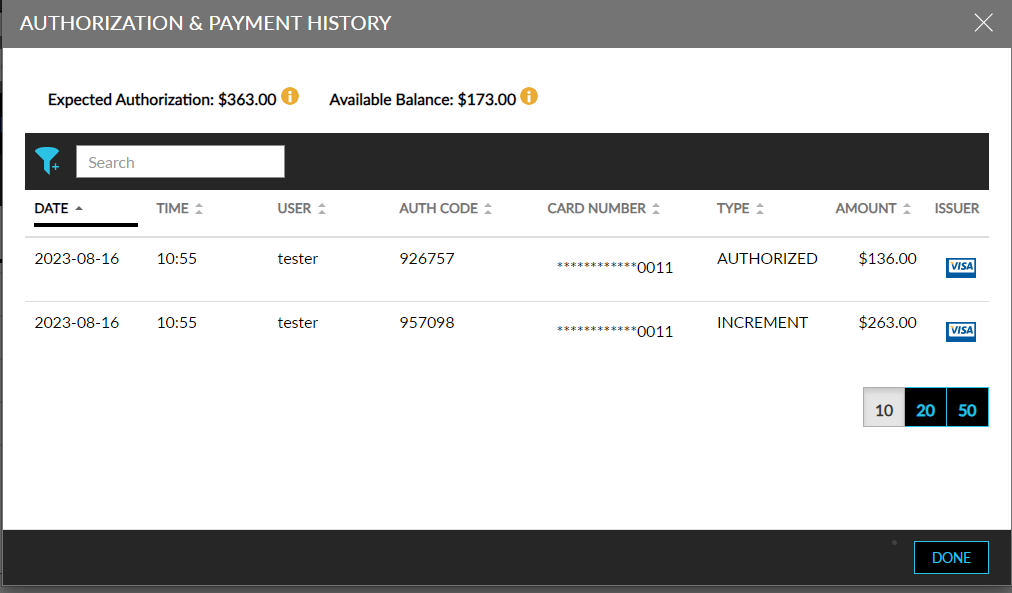
A record for the authorization is created on the Authorization and Payment History screen (Reservation ➜ Folio ➜ More ➜ Authorization and Payment History). The authorized amount collected is also tracked in the Credit Limit Report (Legacy).
The following fields/columns support this feature:
-
The following columns in the Folio tab of the Batch Operations screen displays the authorization details:
|
Column |
Description |
|---|---|
|
Arrival Date |
Displays the arrival date of the reservation and can be sorted This column is added next to the Guest Name column. |
|
Departure Date |
Displays the departure date of the reservation and can be sorted. This column is added next to the Arrival Date column. . |
|
Company |
Displays the name of the company associated with the reservation as a hyperlink.
|
-
The following filter options in the Folio tab of the Batch Operations screen allows users to filter records:
-
To Authorize - Users can enter the range of the amount in the From and To text box. If the user enters an amount in the From text box alone, any amount that is equal to or more than the entered amount is displayed. If the user enters an amount in the To text box alone, any amount that is equal to or less than the entered amount is displayed.
-
Company - Displays all the company profiles part of the reservation in the results.
-
-
The Authorize Cards option under More in the Folio tab of the Batch Operations screen allows users to authorize credit cards with insufficient balance.