Home
The Home option provides an at-a-glance view of how many room maintenances requests, general maintenance service requests, staff on duty by role, and the total of services currently assigned to staff on duty. This enables the users to quickly adjust the staffing levels in maintenance services including electrical, heating, ventilation and air conditioning, and plumbing. For example, the user can determine where the user must send maintenance staff, view whether staff is assigned, or call additional staff.
Perform the following steps to view the maintenance homepage:
Navigate to Rooms Mgmt ➜ Maintenance ➜ Home.
The maintenance home dashboard displays room and general maintenance request status.

Click Details or the maintenance request dashboard to view detail of the request. The following details are displayed in the Room MT Service Requests grid:
|
Field |
Description |
|---|---|
|
Room |
The details of the room that requires a maintenance service. This includes room number, room type and building name. |
|
Service |
The type of maintenance service that has been requested. For example, plumbing, electrical. |
|
Status |
The status of the requested. |
|
Severity |
The severity of the maintenance request: Minor, Normal, Urgent |
|
Time Created |
The date and time at which the service request was created. |
|
Scheduled |
The date and time at which a service request is scheduled to be performed. |
|
Created By |
The details of the user who created the maintenance request. |
|
HK |
The housekeeping status of the room. |
|
Assigned |
The details of the person to whom the maintenance request has been assigned. |
|
Document |
Allows the user to upload an attachment for the maintenance request. Users can attach any of the commonly used file types with a maximum limit of 15 MB. Only users with the following permission can delete documents: DeleteServiceRequestDocument. The permission is associated to the following roles: HK Supervisor, GSA Supervisor, System Administrator |
|
Edit |
Allows the user to edit a maintenance service request. |
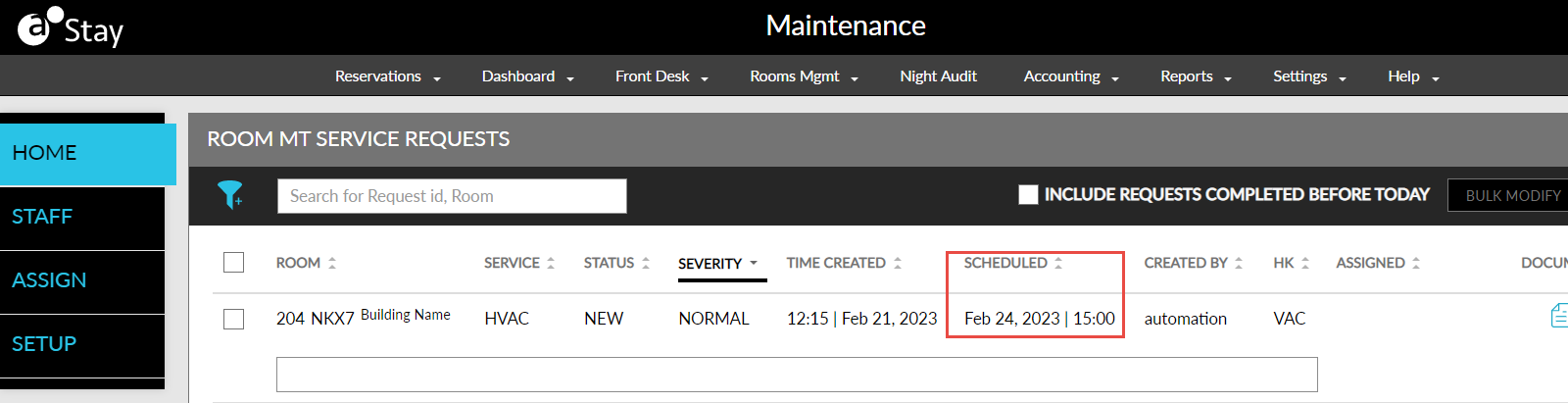
Users can search for request number in the Search field in the Room MT Service Requests section and General Area MT Service Requests section. To enter a comment for Room MT Service Request, enter a comment in the space provided below each request.
To delete a Room MT Service Request, click the delete icon in a service request.
To print a Room MT Service Request, select the request and click Print.
To navigate back to the Maintenance dashboard, click Back.