Setup
This menu includes the following options:
-
Staff - allows users to add the staffs and assign them maintenance roles
-
Services - allows users to create maintenance service types
-
Roles - allows users to create maintenance roles
Roles
The Roles option allows users to create maintenance roles.
Perform the following steps to create maintenance roles:
Navigate to Rooms Mgt➜ Maintenance➜Setup.
Click Roles or scroll down the page.
Click Add New. The New Role dialog box appears.
Enter the Name field of the maintenance role and a unique Code field that the user can use to identify the new role.
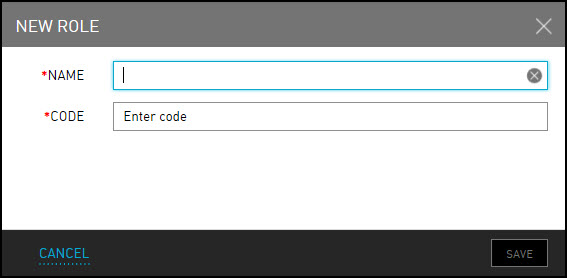
Click Save. The new maintenance role is created.
Services
The Services option allows users to create maintenance service types. There are different responsibilities, or service types, that each maintenance role is responsible for providing. There are many available default services, such as Plumbing, Electrical and more. If the user property offers additional services, the user can add more types.
Perform the following steps to create maintenance services:
Navigate to Rooms Mgt ➜ Maintenance ➜ Setup.
Click Services or scroll down the page.
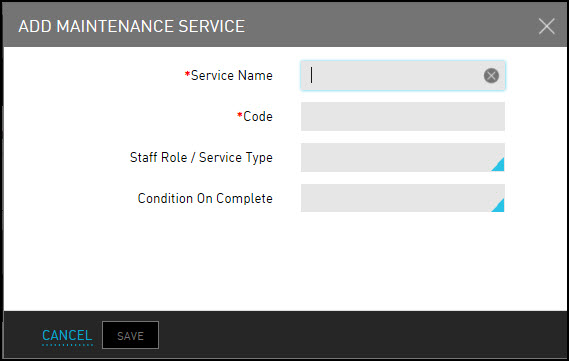
Click Add New. The Add Maintenance Service dialog box appears.
Refer to the following table and fill in the fields to create maintenance services:
|
Field |
Description |
|---|---|
|
Service Name |
The name of the service. |
|
Code |
A unique code to identify the service. |
|
Staff Role/Service Type |
The maintenance role is responsible for providing the service. |
|
Condition On Complete |
The appropriate condition type to indicate what condition the room or general area is on complete. |
Click Save. The maintenance service is created successfully.
Staff
The Staff option allows users to add the staffs and assign them maintenance roles. After the user has defined all the maintenance roles and service details, the users are ready to add the staff and assign them maintenance roles. Users can enable the Display last name as initials in prints and reports checkbox, to display only the first letter of a staff’s last name in the Maintenance Service Requests report.
Perform the following steps to add the staffs and assign them maintenance roles:
Navigate to Rooms Mgt ➜ Maintenance ➜ Setup.
Click Staff.
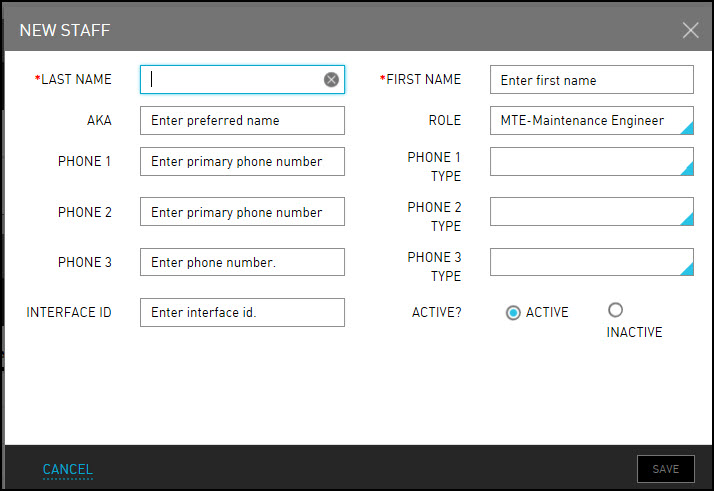
Click Add New. The New Staff dialog box appears.
Refer to the following table and fill in the fields to add a new staff:
|
Field |
Description |
|---|---|
|
Last Name |
The last name of the staff member. |
|
First Name |
The first name of the staff member. |
|
AKA |
Also Known as. Any other name the staff member would like to be called. |
|
Role |
The maintenance role to be performed by the staff member. |
|
Phone |
The phone number of the staff member. Enter up to 3 phone numbers. |
|
Phone Type |
The type of phone number of the staff member. |
|
Interface ID |
The unique interface ID of the staff member. |
|
Active? |
Indicates that the staff member is available for assignment. |
Click Save. The maintenance staff member is created successfully.
Repeat these steps to add all the maintenance staff.