View Service Requests
This feature allows the user to view previously submitted service requests for the reserved room and, if necessary, submit a new service request.
Perform the below instructions to view or raise service requests.
Navigate to and click on the SVC button at the right-side of the screen.

The Service Requests window appears. This window lists all of the current service requests for the room, as well as their status.

Go through the below table for detailed information.
|
Field |
Description |
|---|---|
|
Category |
The category of the service request. The reason selected and comments entered by the user when creating a maintenance service request will be displayed inside the Category accordion. |
|
Service request |
The name of the service request. |
|
Status |
The status of the service request. |
|
Severity |
The severity of the created request. |
|
Time Created |
Time when the service request has been raised. |
|
Scheduled |
The date and time at which the request is scheduled to be performed. |
|
Assigned |
Displays the person to whom the service request has been assigned. |
|
Entered by |
Displays the username who raised the service request. |
|
Edit |
Displays the date when the latest edit has been made. |
The service requests created for the individual component rooms of a suite are displayed as separate line entries.
Completed service requests will appear under the heading Completed Services.
To raise a new request, navigate to the Request Service button at the right-corner of the screen and click on it. Housekeeping services are used to define and manage the work items needed to service rooms on the property. Most properties define the service types and schedule for housekeeping and maintenance when they set up their property.
Perform the following steps to request services:
The Request Service pop-up box will appear.
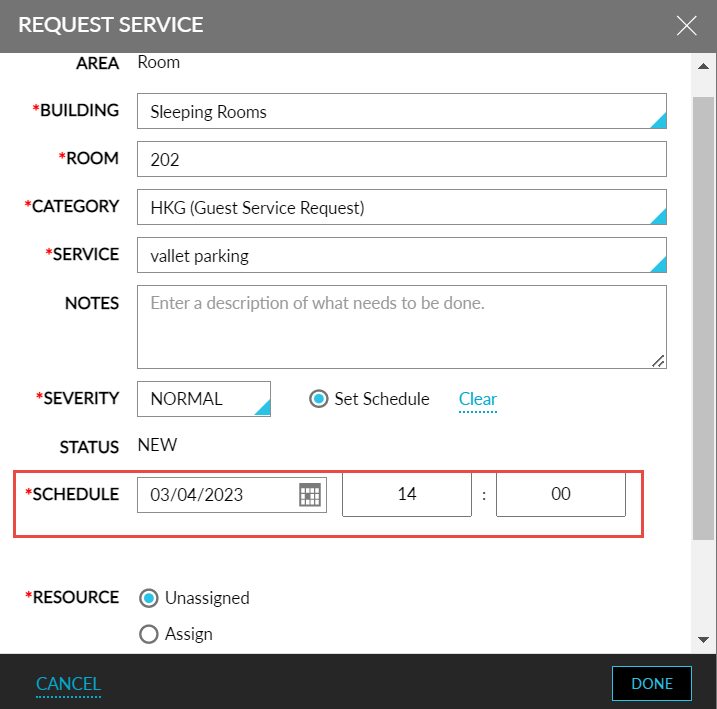
Refer to the following table and fill in the fields to create request services:
|
Field |
Description |
|---|---|
|
Area |
The area is the identifier that ties rooms or public spaces together. If Room field is selected as the Area, select the Room where the service is requested. |
|
Building |
The name of the building in the property. |
|
Room |
A unique identifier of the room. |
|
Category |
The category of the housekeeping service.
|
|
Service |
The service type of the housekeeping service. For example, if Maintenance is selected:
|
|
Reason |
Allows users to select a reason for creating a maintenance request when the Reasons for Inventory Blocks feature setting is enabled. This field will be disabled if there are no active reasons configured. If there is only one reason available for the inventory block, the reason will be prepopulated. |
|
Notes |
The description about the service required. The description is limited to 100 characters. |
|
Severity |
The severity of the service.
|
|
Status |
A status shows the progress of the service request. By default, the Status of service requests are automatically New. After the request is entered, the Status can be changed to reflect the progress of the request. |
|
Set Schedule |
Allows the user to set a schedule date and time for the service requested. The date can be selected from the Scheduled date calendar. The time can be entered in the input fields provided. |
|
Resource |
The resource of the service. |
Click Done. The request for the service is raised successfully.
View Housekeeping Pattern
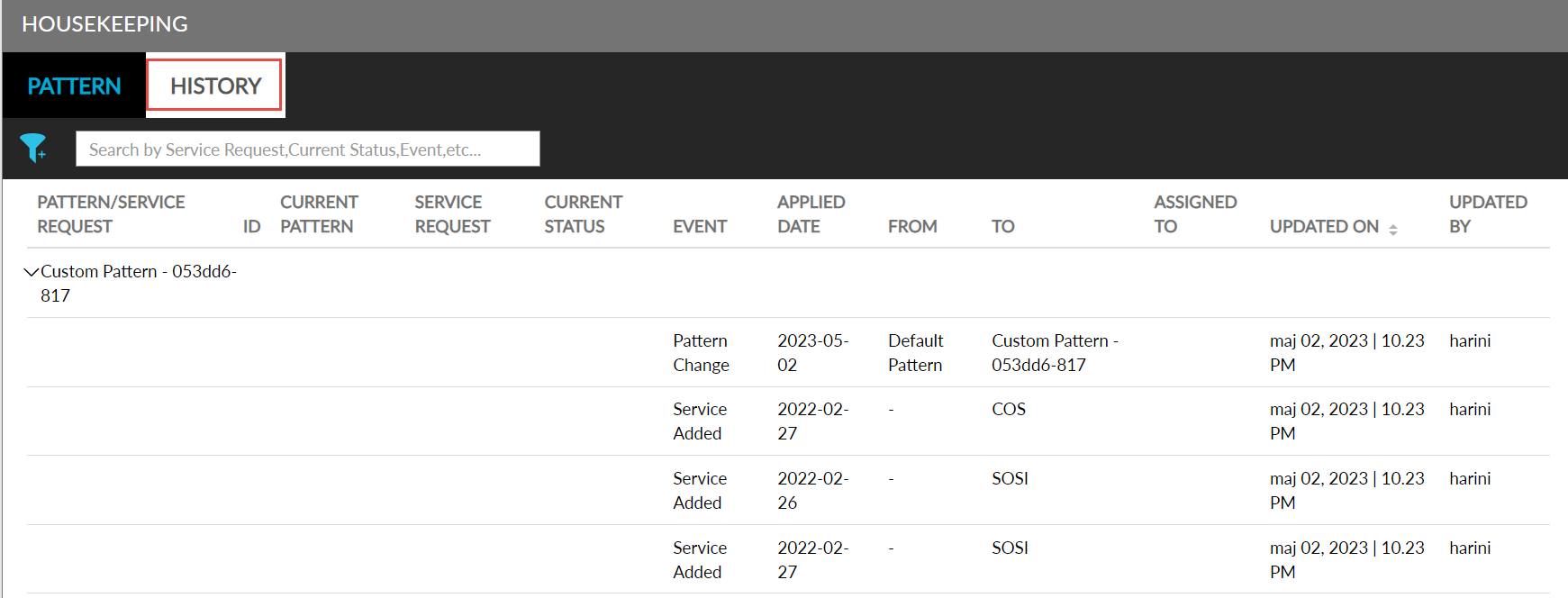
Users can view the current housekeeping pattern applied to the reservations in the Pattern tab of the Housekeeping section. This section also displays the changes made to the housekeeping pattern, housekeeping services, and housekeeping guest services of reservations in the History tab. For example, if a reservation originally had a daily stayover clean service and if the guest opted out of the service on the second night of stay, users could easily recognize the changes made to the housekeeping pattern of the reservation.
The History tab displays the following information:
|
Field |
Description |
|---|---|
|
Pattern/Service Request |
Displays the following type of housekeeping service that is updated:
|
|
ID |
Displays the service request ID as a hyperlink. When clicked, the Edit Services screen is displayed, where users can update the details of the service request. For housekeeping pattern updates, this field is left blank. Users can search for a record using this column. |
|
Current Pattern |
Displays the name of the latest housekeeping pattern applied to reservations. For housekeeping service requests and housekeeping guest service requests, this field is left blank. |
|
Service Request |
Displays the latest service request for the ID. For housekeeping pattern updates, this field is left blank. Users can filter and search records using this column. |
|
Current Status |
Displays the latest status of the service request. For housekeeping pattern updates, this field is left blank. Users can filter and search records using this column. |
|
Event |
Displays the following events and users can filter and search records using this column:
|
|
Applied Date |
Displays the date for which the updated event is being applied for. |
|
From |
Displays the original date of the mentioned event that is being changed. |
|
To |
Displays the modified date of the mentioned event. |
|
Assigned To |
Displays the name of the staff to whom the service request is assigned. When staff is not assigned, and for housekeeping pattern changes, this field is left empty. Users can filter and search records using this column. |
|
Updated On |
Displays the date and time of the update. This column can be sorted. Users can filter records using this column. |
|
Updated By |
Displays the username of the user who updated the service or pattern. For system updates, the username is displayed as System. Users can filter and search records using this column. |
Multiple updates made to the same Pattern/Service Request are displayed inside an accordion. When collapsed, only the ID, Current Pattern, and Status details are displayed. When expanded, all the column details are displayed.
All the column details are displayed in descending order, that is, the ID that was last updated is displayed at the top and its event details are also displayed in descending order.