Add/Select Inventory Item as an Allowance Item
Stay is enhanced to allow users to select inventory items as allowance items when creating or modifying allowance components.
Now, inventory items will also be displayed in the item list and can be added to package reservations.
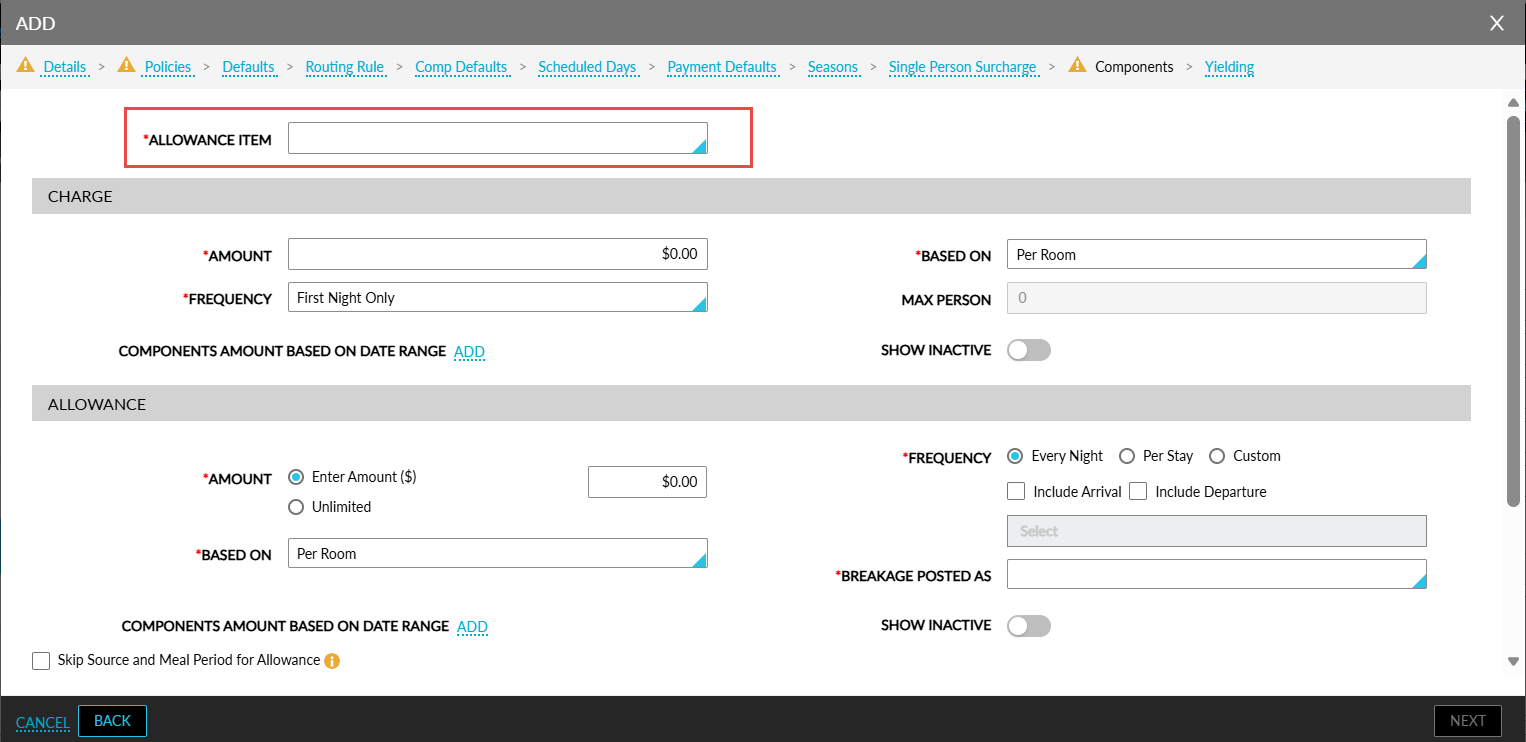
When the Include Estimated Tax checkbox is selected, the Allowance Item field will be displayed as a drop-down list in which inventory items will be displayed along with the transaction items in the following screens:
-
Rates ➜ Add‑ons ➜ Add/Edit ➜ Components ➜ Add/Edit Allowance ➜ Allowance Item
-
Book a Reservation ➜ Estimated Charges ➜ Choose Add‑ons ➜ Add Allowance ➜ Allowance Item
-
Reservation ➜ Estimated Charges & Add‑ons Badge ➜ Choose Add‑ons ➜ Add/Edit Allowance ➜ Allowance Item
-
Groups ➜ Room Blocks ➜ Components ➜ Add/Edit Allowance ➜ Allowance Item
-
Settings ➜ Rates ➜ Packages ➜ Components ➜ Add/Edit Allowance ➜ Allowance Item
Previously, when users selected the Include Estimated Tax option, only transaction items were displayed.
Additionally, the Transaction Item field has been renamed to Item and displays all active transaction and inventory items available at the property.
When users select allowance components from the following areas, inventory items will be displayed in addition to transaction items:
-
Rates ➜ Add‑ons ➜ Add/Edit ➜ Components ➜ Add/Edit Allowance ➜ Item
-
Book a Reservation ➜ Estimated Charges ➜ Choose Add‑ons ➜ Add Allowance ➜ Item
-
Reservation ➜ Estimated Charges & Add‑ons Badge ➜ Choose Add‑ons ➜ Add/Edit Allowance ➜ Item
-
Groups ➜ Room Blocks ➜ Components ➜ Add/Edit Allowance ➜ Item
-
Settings ➜ Rates ➜ Packages ➜ Components ➜ Add/Edit Allowance ➜ Item
When an inventory item is used as an allowance item, as soon as the allowance component is added to the Estimated Charges section of the reservation, the following actions will be performed:
-
The inventory item will be treated as a fixed component.
-
The availability of the inventory item will be updated accordingly.
-
The inventory item indicator will be displayed for the item in the Estimated Charges section.
When the selected inventory item is not available, users will be notified and will be provided with the ability to override the availability restriction.
Apply Tax for the Selected Inventory Item
Users can also choose to apply the tax associated with the selected inventory item to the allowance. To support this enhancement, a new section, Components, has been added to the Rates tab of the Property Setup screen (All Settings ➜ General ➜ Property, Buildings & Outlets ➜ Property Settings ➜ Rates). This section displays a new flag, Include Estimated Tax for Allowance Item, that displays the following functionality:
-
Enabled: When enabled, the Include Estimated Tax checkbox will be hidden and instead, an Allowance Item drop-down list will be displayed in the Add/Edit Allowance (Settings ➜ Rates ➜ Rate Plans & Packages ➜ Add/Edit) section when creating packages and add-ons.
-
Disabled: When disabled, the Item text field will continue to be displayed as per the existing functionality.
When the Include Estimated Tax for Allowance Item flag is enabled, all active transaction and inventory items available at the property are displayed in the Allowance Item drop-down list, allowing users to select the item used for tax calculation. The allowance charge inherits the tax class associated with the selected item.
Display Allowance in Folios
In the Estimated Charges section of a reservation, the allowance is displayed in the following format: Allowance - <Transaction Item>. The tax amount is calculated and displayed based on the selected transaction item. The tax class and tax amount are highlighted and displayed when hovered upon.
The allowance charge, along with its associated tax, is posted to the guest folio. The tax is derived from the configured transaction item.
In the package folio, the allowance amount is automatically posted for the applicable dates. To offset the tax added to the guest folio, a corresponding negative tax value is posted in the package folio to maintain the balance.
The add-ons badge displays the allowance in the following format: Allowance - <Transaction Item>.
Daily Package Folio Balancing
Stay is enhanced to ensure that the package folio is balanced to zero daily regardless of the allowance frequency.
For allowances configured as Per Stay, the allowance is not posted at the end of the stay. Instead, the allowance credit and breakage are calculated and posted during each date roll. This ensures that the package folio is balanced to zero every day.
Allowance credit is posted to offset the allowance charge, and breakage is calculated as the difference between the allowance charge and the consumed amount.
When the guest is charged on the same day as the allowance, both the allowance credit and breakage are posted to ensure the package folio is zero.
When the guest is not charged on the same day, only the breakage amount is posted based on the consumed value, ensuring the folio remains balanced. Remaining allowance balances are carried forward across the stay when applicable.
Report Enhancements
The following reports and its columns have been enhanced to include the tax amount associated with allowance items:
|
Report |
Column |
|---|---|
|
Comp Posting |
Comped Tax Amount |
|
Package Component Details |
Amount |
|
Transaction Items Details |
Tax Amount |
|
Transaction Items Summary |
Tax Amount |
|
Transactions Journal |
Tax |
|
Account Balances |
Account Balance |
|
AR Ageing Detail |
Current/31-60 days/ 61-90 days/ 91-120 days/ 121 + days/ Subtotal/ Uninvoiced/ Total/ Unapplied |
|
Revenue by Transaction Item |
Gross |
|
Ledger Activity Detail |
Tax Amount/ Beginning /Ending |
|
Ledger Summary |
Amount/ Beginning /Ending |
In the Transaction Item Details report, allowance charges and breakage amounts are displayed in the Credit column, while the consumed allowance values are displayed in the Debit column.
Label Updates
The following label updates have been made to the Add/Edit pop-up screens that appear when users create or modify new package rate plans or add-ons:
-
Per Night has been modified as Every Night.
-
Charge per Night has been renamed as Amount.
-
Charge Based On has been renamed as Based On.
-
Allowance Amount has been renamed as Amount.
-
Enter Allowance Value has been renamed as Enter Amount ($).
-
Unlimited Allowance Amount has been renamed as Unlimited.
-
Allowance Based On has been renamed as Based On.