Auto Settle Folios Periodically in Reservations, Groups, and House Accounts
Stay is enhanced to settle folios periodically in reservations, groups, and house accounts. This enhancement facilitates timely clearing of the outstanding charges in the account folios. Previously, users had to make manual payments to settle the folios.
Feature Setting
The following new feature setting has been introduced to allow users to create an auto settlement rule that can be associated with reservations/groups/house accounts:
-
Name: Auto Settlement Rule
-
Value: Must be enabled
-
Comments: License is not required
Permission
The following new permission has been introduced to allow users to create/modify the settlement rule:
-
Stay_AutoSettlement
This permission is provided to the following roles by default:
-
System Administrator
-
Stay Hotel Manager
-
Department Manager
-
Profile Management
-
Stay Accounting
-
Accounts Receivable Manager
The following new permissions have been introduced to allow users to associate a settlement rule with reservations/groups/house accounts:
-
Stay_AutoSettlementReservation
-
Stay_AutoSettlementGroup
-
Stay_AutoSettlementHouseAccount
These permissions are provided to the following roles by default:
-
System Administrator
-
Stay Hotel Manager
-
Department Manager
-
Profile Management
-
Guest Service Agent
-
Stay Front Desk
-
Stay Hotel Supervisor
-
GSA Supervisor
-
Stay Accounting
-
Accounts Receivable Manager
-
Stay Night Audit
Selecting a Payment Method for a House Account
Before settling outstanding charges for folios of house accounts, users must first select a payment method for house accounts.
To support this ability, a new section, Payment Methods, is added to the house account. Users can add, remove, or modify the payment methods selected for a house account like reservations and groups. Users can add a new payment method to a house account by clicking the add icon (+) in the Payment Methods section. The Payment Method pop-up screen appears that displays the list of available payment methods configured at the property. Users can select the preferred payment method and click Save. The payment method gets added to the house account.
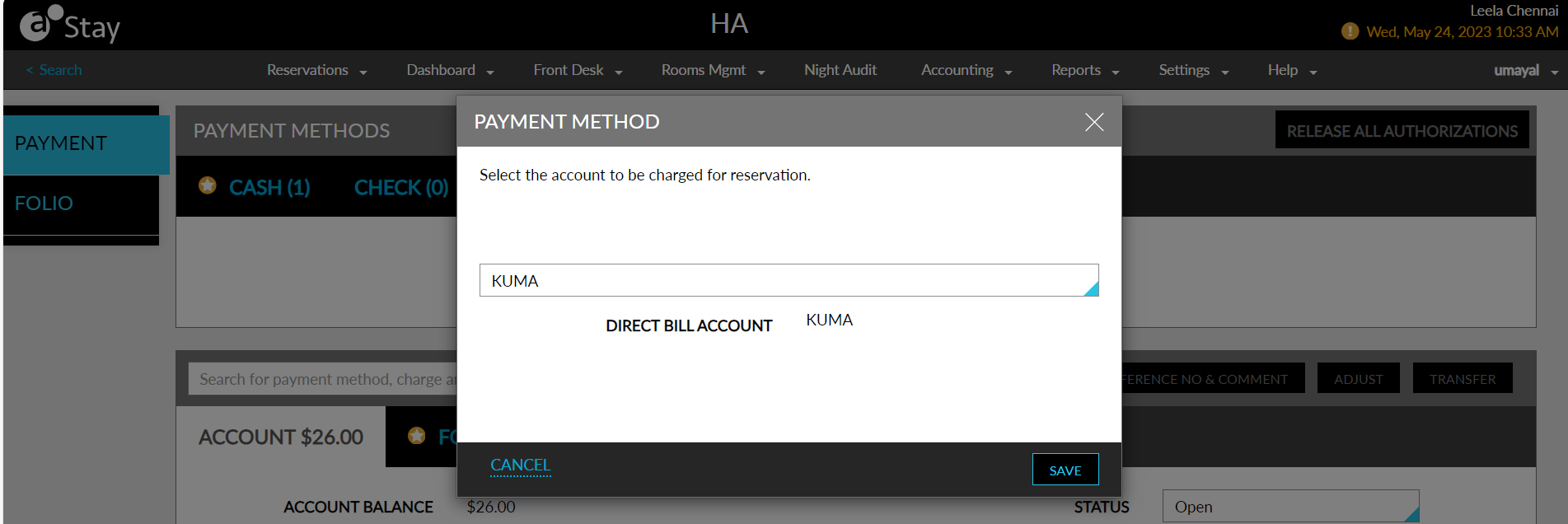
Users can select a default payment method for the account by enabling the Make this the default payment method option for the preferred payment method. Users can also select a default payment method for each folio in the house account. The payment for the folio is processed based on the payment method selected. For a new house account, Cash is set as the default payment method.
Creating an Auto Settlement Rule
When the Auto Settlement Rule feature setting is enabled, users can create the settlement rule to be associated with reservations/groups/house accounts from the Auto Settlement Rule tab in the Guest Accounting screen. Users can select the payment collection date and the payment method type for which the payments must be collected automatically. Only users with the Stay_AutoSettlement permission can create/modify the settlement rule.
Users can create a new rule by clicking Add in the Auto Settlement Rule tab. When clicked, the Add Auto Settlement Rule pop-up screen appears that displays the following fields:
|
Field |
Description |
|---|---|
|
Code |
|
|
Rule Name |
|
|
Auto Settlement Period |
Select if payments must be collected daily, weekly, monthly, or yearly. |
|
|
Users can choose to email a copy of the folio to the email address associated with the reservation. |
|
Payment Type |
Select from the following payment types using which the payment must be collected:
|
Configuring a Daily Settlement Rule
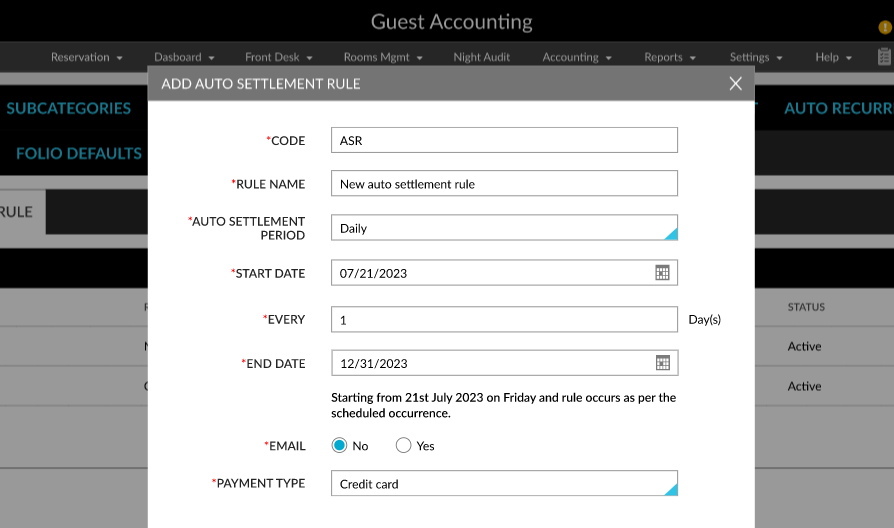
The following fields are displayed in the Add Auto Settlement Rule pop-up screen when users select the Auto Settlement Period as Daily.
|
Field |
Description |
|---|---|
|
Start Date |
Select a start date for the rule. |
|
Every |
Select the frequency at which the payments must be collected. For example, 2 days. |
|
End Date |
Select an end date for the rule. |
For example, if the Start Date is selected as 01/17/2024 and the End Date is selected as 01/20/2024 for Every 2 days, payments will be collected automatically between the selected dates for every 2 days using the selected Payment Type.
Configuring a Weekly Settlement Rule
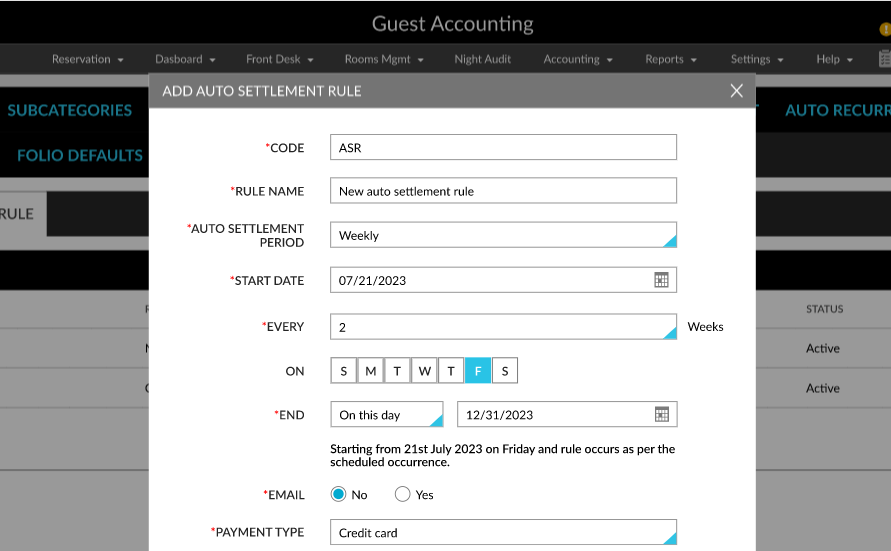
The following fields are displayed in the Add Auto Settlement Rule pop-up screen when users select the Auto Settlement Period as Weekly.
|
Field |
Description |
|---|---|
|
Start Date |
Select a start date for the rule. |
|
Every |
Select the frequency at which the payments must be collected. For example, 2 weeks. |
|
On |
Users must select the preferred day of the week on which the payments must be collected. For example, Monday. |
|
End Date |
Users must select from the following options to set an end date for the rule:
|
For example, if the Start Date is selected as 01/17/2024 and the End Date is selected as After 2 Occurrences for Every 2 weeks, payments will be collected automatically from 01/17/2024 for every 2 weeks on Monday for 2 occurrences using the selected Payment Type.
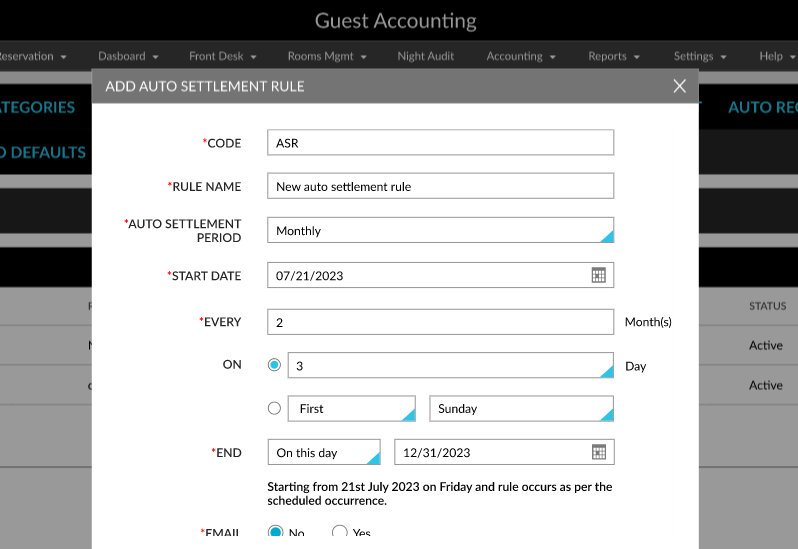
Configuring a Monthly Settlement Rule
The following fields are displayed in the Add Auto Settlement Rule pop-up screen when users select the Auto Settlement Period as Monthly.
|
Field |
Description |
|---|---|
|
Start Date |
Users must select a start date for the rule. |
|
Every |
Users must select the frequency at which the payments must be collected. For example, 2 months. |
|
On |
Users must select the preferred day of the month on which the payments must be collected. Users can select from the following options:
|
|
End Date |
Users must select from the following options to set an end date for the rule:
|
For example, if the Start Date is selected as 01/17/2024 and the End Date is selected as After 2 Occurrences for Every 2 months On the 10th day of the month, payments will be collected automatically from 01/17/2024 for every 2 months on the 10th day of the month for 2 occurrences using the selected Payment Type.
Configuring a Yearly Settlement Rule
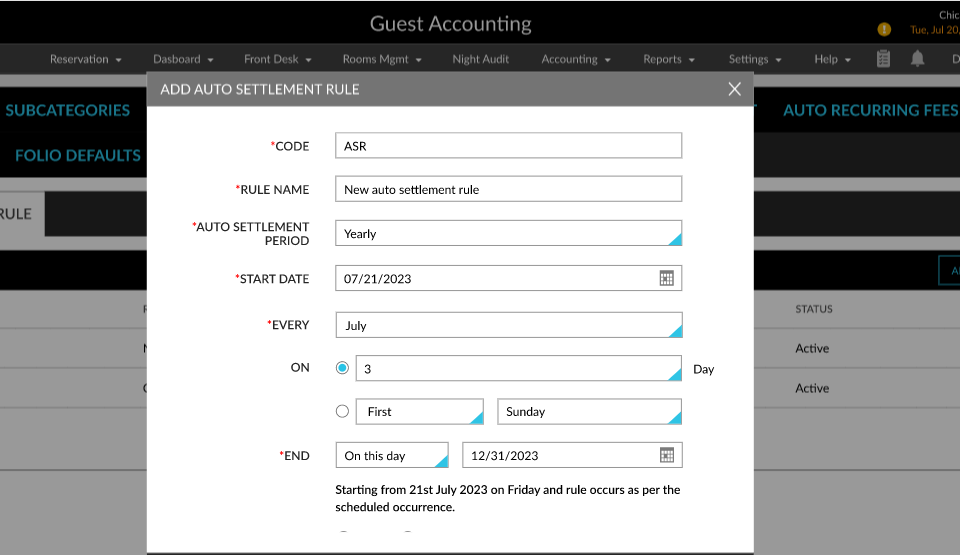
The following fields are displayed in the Add Auto Settlement Rule pop-up screen when users select the Auto Settlement Period as Yearly.
|
Field |
Description |
|---|---|
|
Start Date |
Users must select a start date for the rule. |
|
Every |
Users must select the frequency at which the payments must be collected. For example, January. |
|
On |
Users must select the preferred day of the month on which the payments must be collected. Users can select from the following options:
|
|
End Date |
Users must select from the following options to set an end date for the rule:
|
For example, if the Start Date is selected as 07/21/2023 and the End Date is selected as On this day - 12/31/2023 for Every July On the 3rd day of the month, payments will be collected automatically from 07/21/2023 every July on the 3rd day of the month up to 12/31/2023 using the selected Payment Type.
The following columns are displayed in the Auto Settlement Rule tab in the Guest Accounting screen for the created rule:
-
Rule Code
-
Rule Name
-
Auto Settlement Period
-
Payment Method
-
Email Required
-
Status
Users can modify a rule by clicking the Rule Code hyperlink. When clicked, the Edit Auto Settlement Rule pop-up screen appears where users can modify all the details except the code.
Associating a Settlement Rule with a Reservation/Group/House Account
Users with the Stay_AutoSettlementReservation, Stay_AutoSettlementGroup, and Stay_AutoSettlementHouseAccount permissions can associate a settlement rule with a reservation/group/house account from the Settlement Rule drop-down list in the Folios section of the account. This drop-down list displays all the settlement rules that fall within the date range of the reservation. The rules in the drop-down list are displayed in their order of occurrence (daily, weekly, monthly, and yearly).
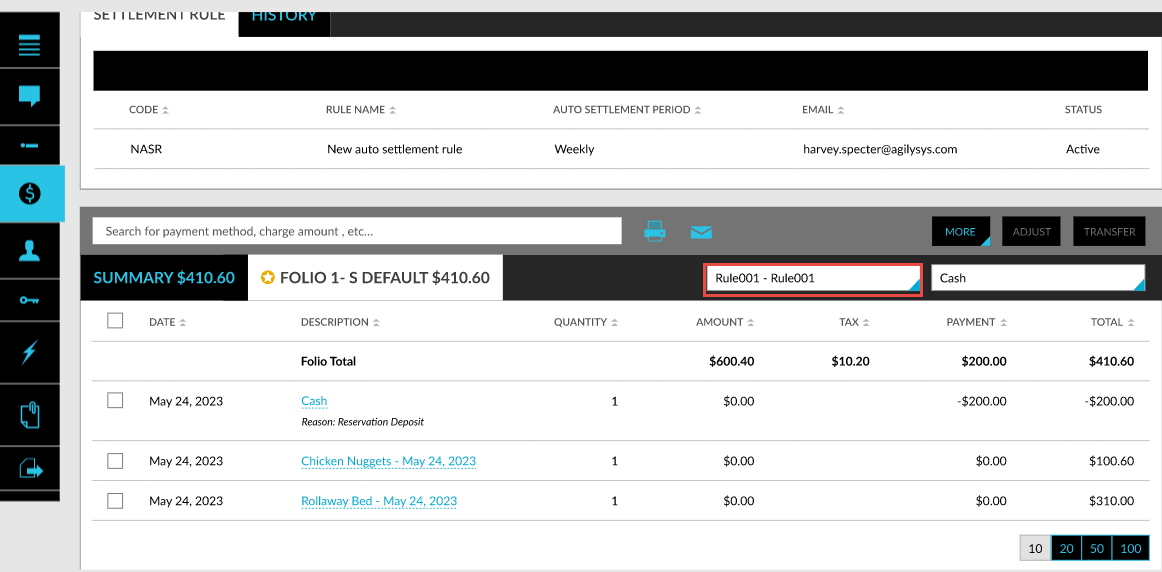
Users can only select the rule for which the Payment Type matches the Payment Method associated with the folio. For example, users cannot associate a rule with the Payment Type as Direct Bill for a folio whose Payment Method is set as Credit Card. The following messages are displayed when the Payment Type of the rule does not match the Payment Method associated with the folio:
-
No valid credit card is currently available for the folio. To proceed, please add a valid credit card.
-
No A/R Account is currently available for the folio. To proceed, please add an A/R Account.
Once the settlement rule is selected, users cannot modify the Payment Method associated with the folio. To modify the Payment Method, users must select the Settlement Rule option as None and then modify the payment method.
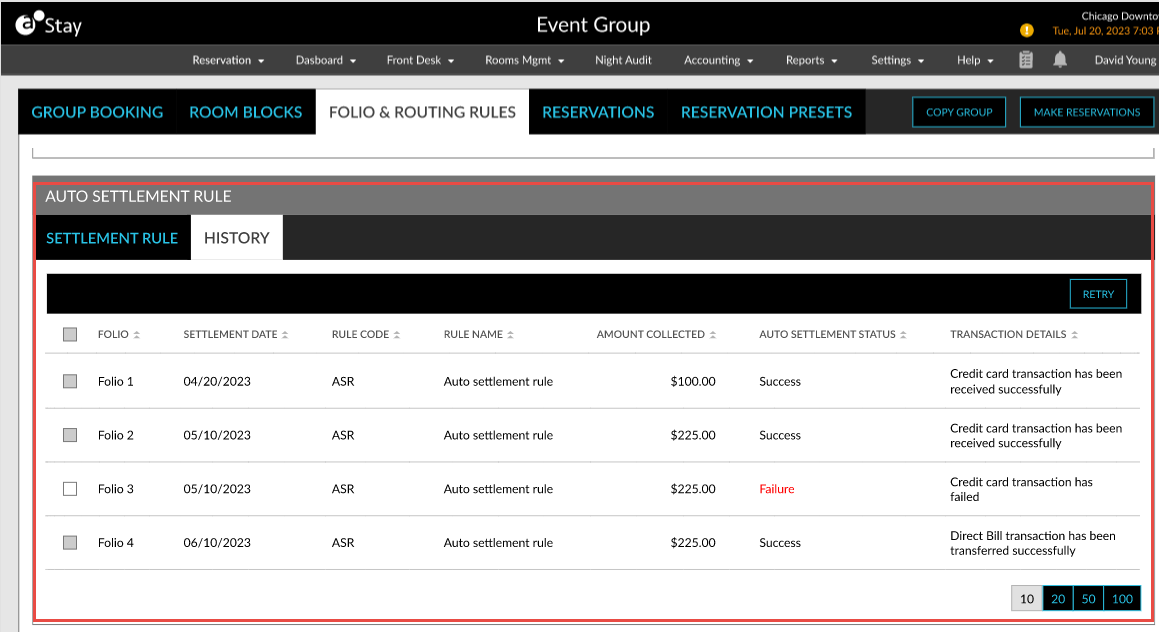
The settlement rule associated with the account is displayed in the Settlement Rule tab in the Auto Settlement Rule section of the account. The status of the payments collected is displayed in the History tab. When the payment collection fails, users can select the required transactions and click the Retry option to process the payments again. Users can also perform a Retry when the settlement rule associated with the folio is modified.
The following message is displayed when the settlement rule does not apply to a reservation when the reservation’s duration is modified: The system has automatically removed the settlement rule because it does not apply to the modified date range. Please review and link the appropriate rule instead.
To support this enhancement, the following changes have been made:
-
A new section, Payment Methods, has been introduced in house accounts that enables users to select the preferred payment methods for the folios in the house account.
-
A new tab, Auto Settlement Rule, has been added to the Guest Accounting screen that allows users to configure the settlement rules to be associated with reservations, groups, and house accounts.
-
A new drop-down list, Settlement Rule, has been added to the Folios section of reservations, groups, and house accounts that allows users to select the settlement rule to be associated with the folio.
-
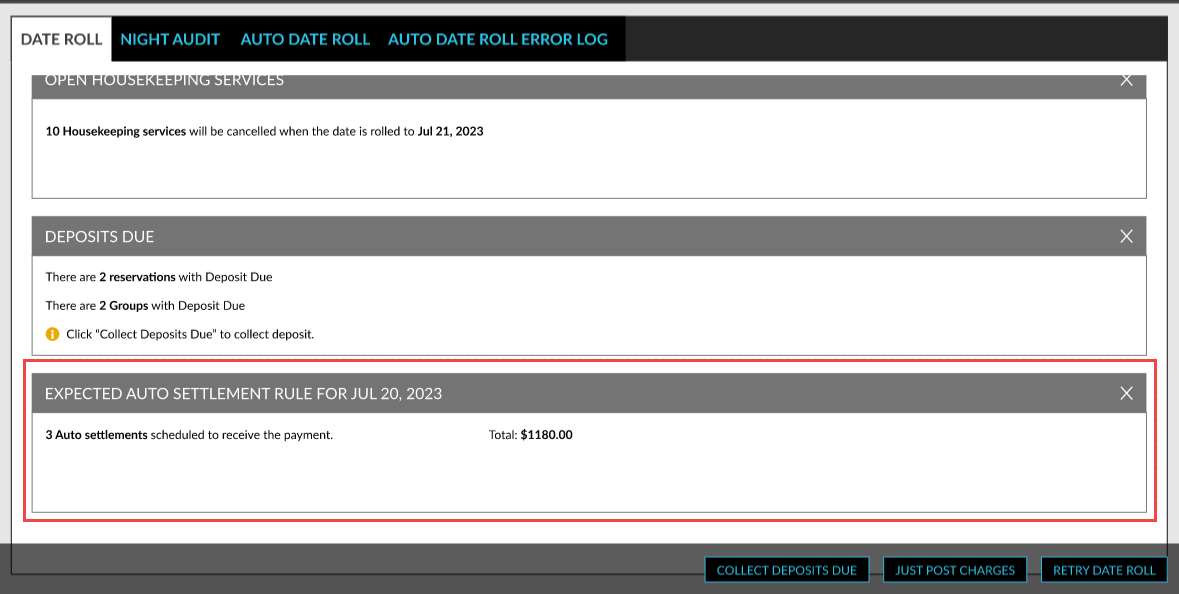
A new section, Expected Auto Settlement Rule for <current property date>, has been added to the Date Roll tab of the Night Audit screen that displays the count of the auto settlements scheduled for the day.
-
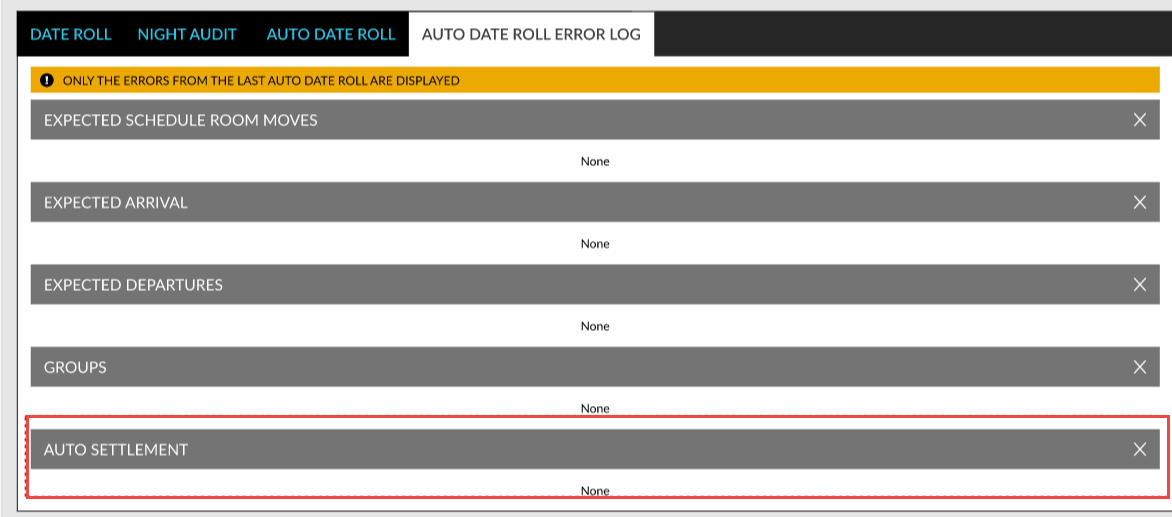
A new section, Auto Settlement, has been added to the Auto Date Roll Error Log tab of the Night Audit screen that displays the error logs for the auto settlement failures that occur in reservations, groups, and house accounts.