Display Policy Approval/Waiver Forms in Payment Devices
Stay is enhanced to display the policy approval and waiver forms configured at a property when guests print the registration card for a reservation or sign the digital registration card using a payment device or tablet.
For example, if the property has configured a Pet Consent policy that is required to be acknowledged by guests accompanied by pets during check-in, the guest’s consent for the policy can be obtained when the registration card for the reservation is printed or signed using a payment device or tablet.
Permission
The following new permission must be assigned to use this feature:
-
Stay_ManageForms: Allows users to create new forms and modify the previously configured forms.
This permission is assigned to the following roles by default:
-
System Administrator
-
Stay Hotel Manager
-
Department Manager
-
Profile Management
Configure Forms
Users can configure policy approval and waiver forms from the Forms tab of the Registration Card Setup screen (All Settings ➜ Templates ➜ Registration Card ➜ Forms). When users click Add, the Add pop-up screen appears that displays the following fields.
|
Field |
Description |
|---|---|
|
Active |
This flag is disabled by default. Users must enable this flag to activate a form. |
|
Code |
A code for the form. This is a mandatory field that accepts alphanumeric characters. |
|
Name |
A name for the form. This is a mandatory field that accepts alphanumeric characters. |
|
Description |
Description of the form. This is a mandatory field that accepts alphanumeric characters. |
|
Select by Default |
Select this checkbox to display and print the form by default when guests print the registration card for a reservation or sign the digital registration card using a payment device or tablet. |
|
Header |
This is a mandatory field that allows users to select the fields to be displayed in the header of the form from the list of fields displayed in the Guest Details section. |
|
Sub Header |
This is a mandatory field that allows users to select the fields to be displayed in the sub-header of the form from the list of fields displayed in the Guest Details section. |
|
Terms and Conditions |
The terms and conditions to be included in the form. This is a mandatory field that accepts alphanumeric characters. |
|
Guest Details |
Displays the following fields that can be selected to be included in the Header and Sub Header section of the form.
|
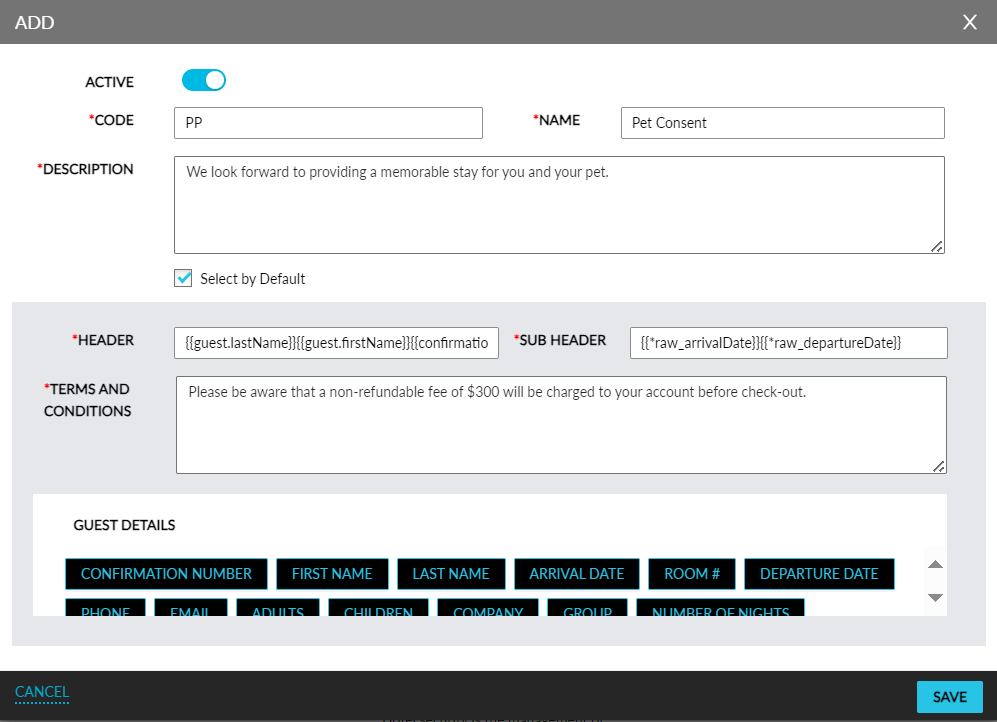
When users click Save, the form will be saved and displayed in the Forms tab. The details of the forms configured will be displayed in the following columns in the Forms tab:
-
Code
-
Name
-
Description
-
Select by Default
-
Status
To modify the details of a form, users must click on the form code displayed as a hyperlink in the Code column. When clicked, the Edit pop-up screen appears that allows users to modify the configured details except for the name and code.
Display Forms to Guests
When users select the Print Registration Card, Sign Registration Card on Payment Device, or Sign Registration Card on Tablet options in the Print/Email/SMS section of reservations, the Set Policy pop-up screen appears that allows uses to select the policy approval and waiver forms to be acknowledged by the guests from the Forms drop-down list. This is a multi-select drop-down list that displays all forms in the Active status. Users can also deselect a form configured to displayed by default.
Once preferred forms are selected, they are displayed one after the other to guest before they can acknowledge that they have seen all forms and select the checkbox, I agree with policies.
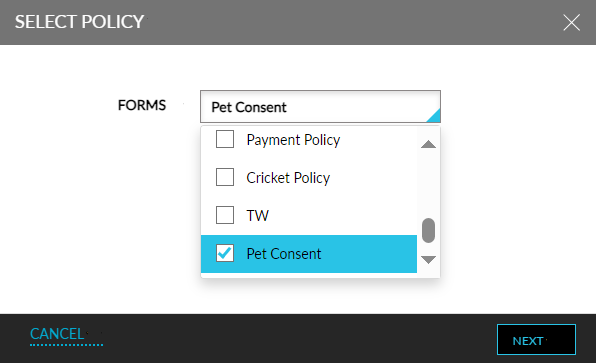
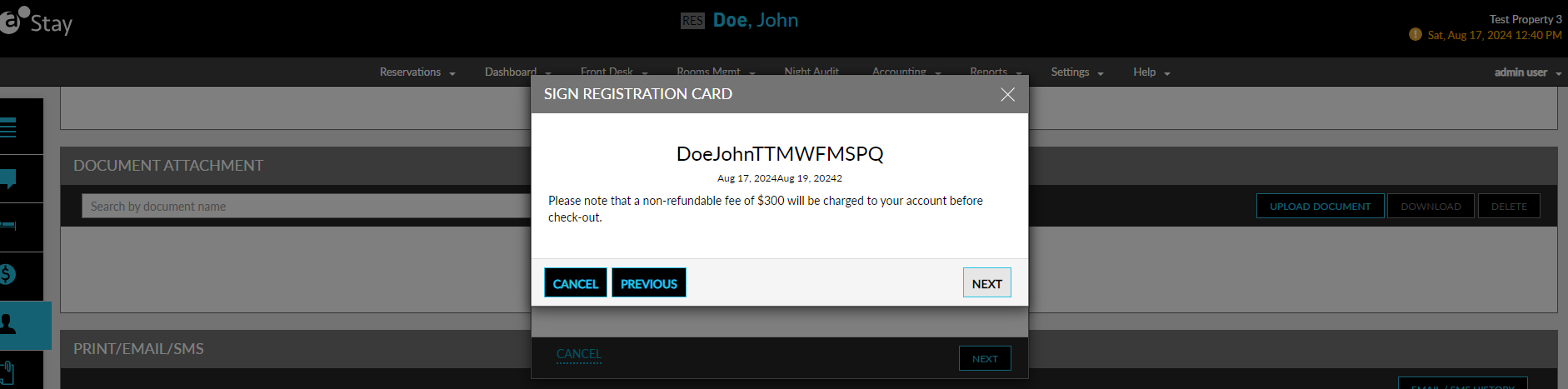
When users click Next, the Sign Registration Card pop-up appears that displays the registration card for the reservation. Users must continue to click Next to view the forms selected for display. The forms will be displayed one after the other in the Sign Registration Card pop-up screen.
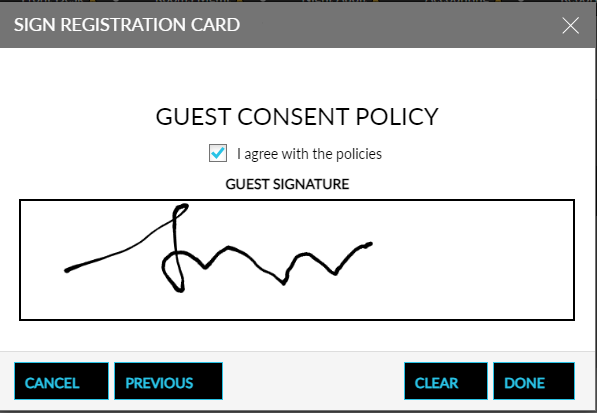
When users click Next after viewing all the forms, the Guest Consent Policy section will be displayed. Users must select the I agree with the policies checkbox and the signature of the guest must be captured after the forms are viewed and agreed to by the guests.
The forms that are signed by the guests digitally will be available to be downloaded in the Document Attachment section of the reservation.
When users print the registration cards for multiple reservations from the Registration Card tab of the Batch Operations screen (Front Desk ➜ Batch Operations ➜ Registration Card), the forms configured to be printed by default will be printed along with the digital registration cards of the reservations.
System Changes
To support this enhancement, the following changes have been made:
-
A new tab, Forms, has been added to the Registration Card Setup screen (All Settings ➜Templates ➜Registration Card ➜Forms).
-
A new pop-up screen, Set Policy, has been introduced that appears when users select the Print Registration Card, Sign Registration Card on Payment Device, or Sign Registration Card on Tablet options in the Print/Email/SMS section of reservations.
-
A new section, Guest Consent Policy, has been added to the Sign Registration Card pop-up screen that displays the I agree with the policies checkbox and the input field for capturing a guest’s signature.