Display Total Unapplied Payments Available for A/R Accounts
Stay is enhanced to display the total unapplied payments available for an A/R account in the following areas:
-
The Unapplied Payments section of the A/R account
-
The statements generated for the account manually
-
The AR Unapplied Payments report (Dynamic)
Display Total Unapplied Payments in A/R Accounts
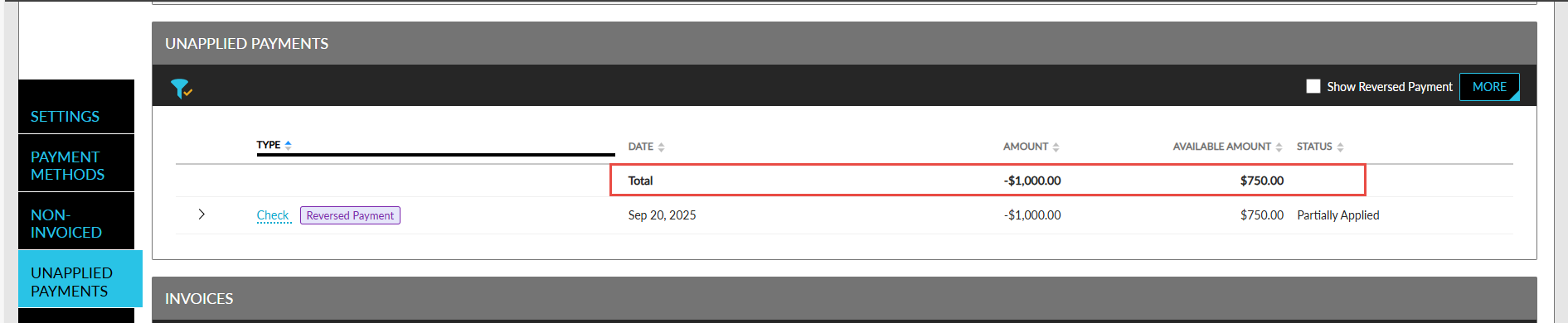
When users access an A/R account, the total unapplied payments available for the account is displayed in a new row in the Unapplied Payments section of the account. A new label, Total, has been introduced that displays the sum of the unapplied payments made to the account as a negative value in the Available column and sum of the available amount in the Available Amount column.
Display Unapplied and Non-Invoiced Balance in Statements
Users can choose to include the unapplied payments balance and the non-invoiced balance in the statements generated for an invoice. The following new fields have been added to the Create Statement pop-up screen (A/R account ➜ Accounts Receivable tab ➜ Invoices ➜ Create Statement):
-
Include All Non-Invoiced Balance: When selected, the total non-invoiced balance amount is displayed in the statement.
-
Include All Unapplied Balance: When selected, the unapplied payments balance is displayed in the statement.
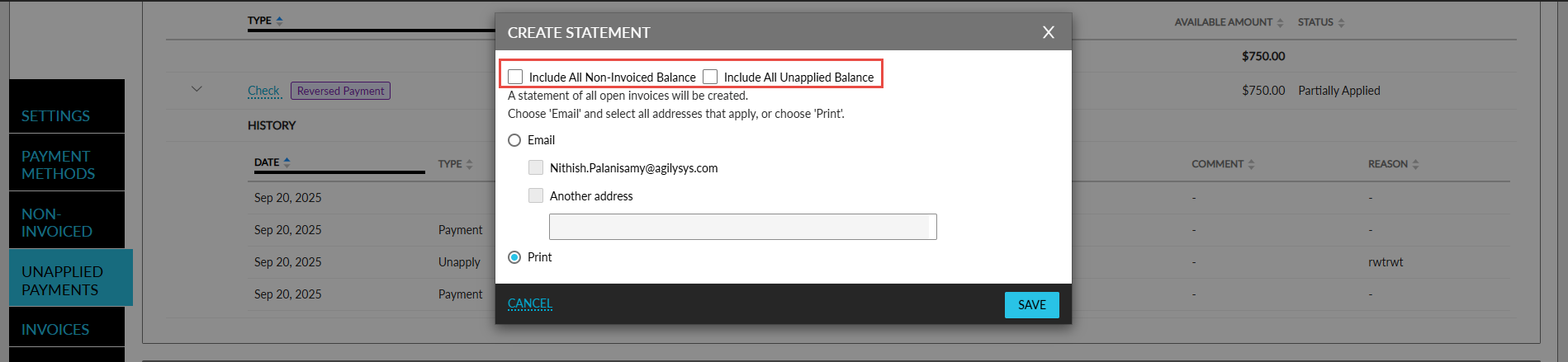
These checkboxes are also displayed in the Create Statement pop-up screen that appears when users generate statements for the A/R accounts from the Accounts Receivable dashboard (Accounting ➜ Accounts Receivable).
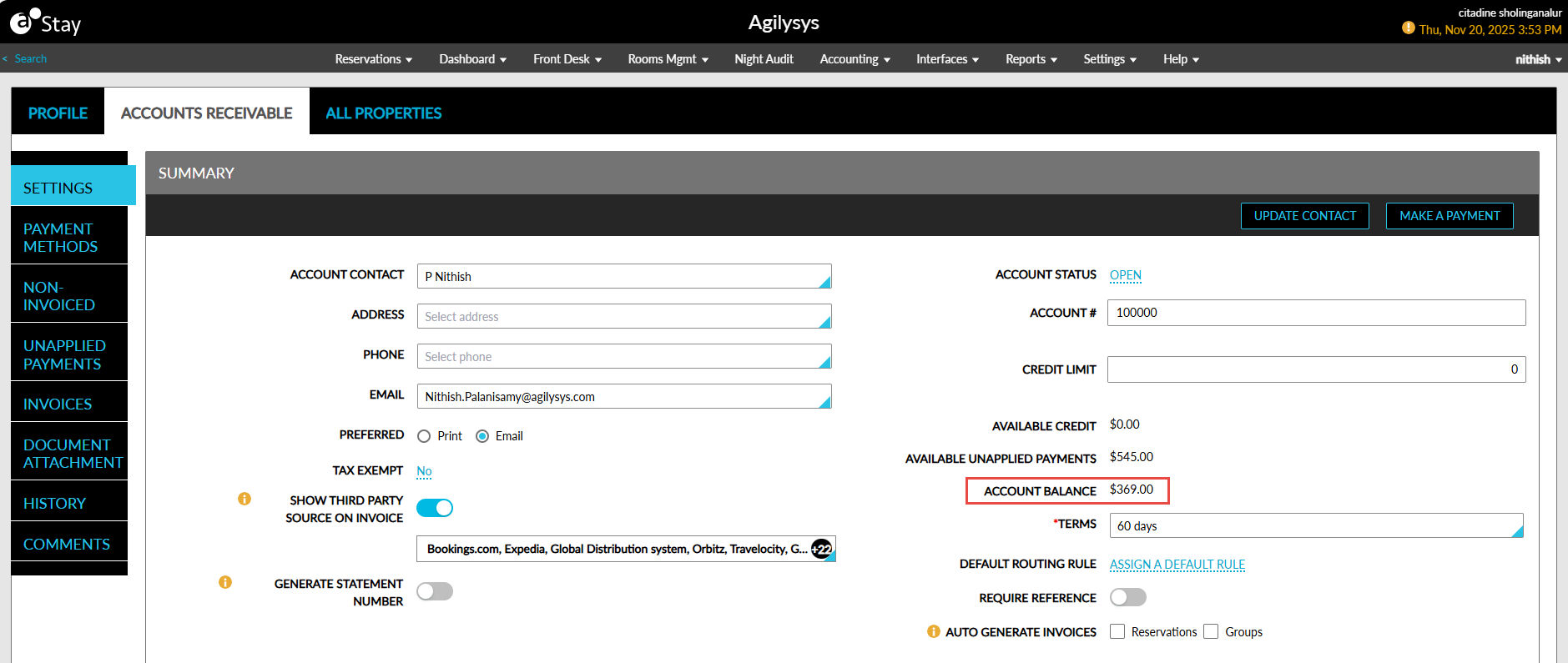
Display Account Balance of A/R Accounts
A new field, Account Balance, has been added to the Summary section of the A/R accounts. This field displays the account balance of the account calculated as follows: Account Balance = (Unapplied Payments) - (Invoice amount + Non-invoiced amount).