Linked Reservations: Bulk Check-Ins and Add Routing Rules
Stay is enhanced to introduce the capability to assign rooms, apply routing rules, and perform bulk check-in operations for linked reservations. This enhancement allows users to efficiently manage reservations within a link set by assigning rooms in batch, applying routing rules to specific reservations, and checking in multiple reservations simultaneously.
Assign Rooms Tab for Linked Reservations
A new tab, Assign Rooms, has been added to the Linked Reservations pop-up screen that appears when users link reservations (Reservation ➜ Reservation Summary ➜ Link badge). Based on the room preferences selected in the previous tabs, the following sub sections will be displayed in this tab:
-
Connected
-
Near By
-
Same Floor
-
Same Building
-
No Preference
The reservations selected in each subsection will appear under the corresponding section. Each reservation will be displayed in a separate box, and users will be able to select each reservation and assign rooms.
Users will be able to assign different room numbers for each day using the existing Allow Date Specific Room Selection feature. Only reservations in the following statuses will be displayed:
-
Arriving
-
Reserved
-
Inhouse
When a reservation already has a room assigned, the room number will automatically populate in the respective box. When the user modifies the room number for an already assigned reservation, a Room Summary tab will be displayed dynamically after the Routing Rule tab. This tab displays details of the modified room as per the existing functionality.
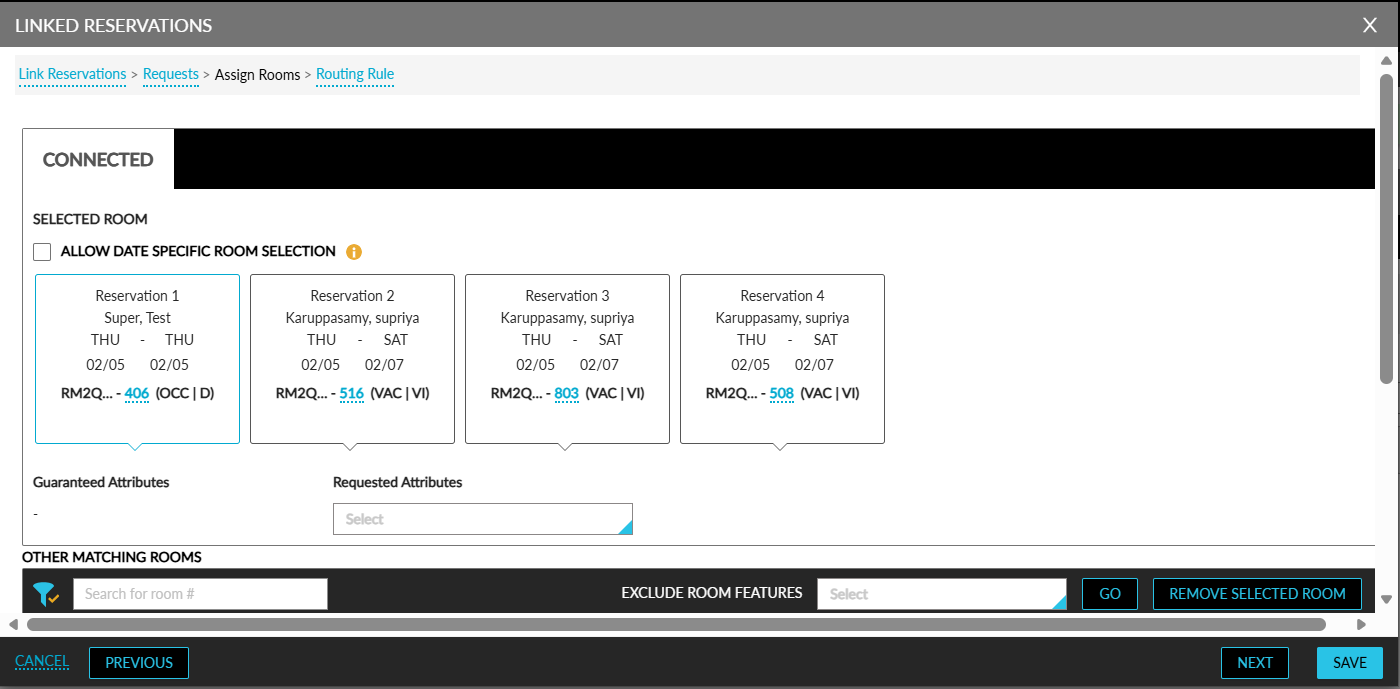
Other Matching Rooms
A new tab, Other Matching Rooms, has been added to the Assign Rooms tab. This table will display matching rooms for the selected reservation. When a reservation is selected, the rooms that match the reservation’s room type will be automatically displayed. Only rooms with the same room type assigned to the reservation will be displayed. Rooms of the same room type from guest stay history and guest preferred rooms will be displayed in a separate table.
A new column, Connector Type, has been added to this table that displays the following values:
-
Connecting Room
-
Nearby Room
When rooms are marked as connecting or nearby, the corresponding values will be displayed. Based on the room preference selected, the following rooms will appear at the top of the table:
-
Connecting rooms
-
Nearby rooms
-
Same building rooms
-
Same floor rooms
Users can filter rooms using the housekeeping condition filters.
The Assign tab allows users to perform the following operations for all applicable reservations within the link set:
-
Assign rooms
-
Change rooms
Assigning a room to a linked reservation is not mandatory. After providing preferences, users may exit the process by clicking Save. When the user clicks Remove Selected Room in the table, the room assigned to the selected reservation will be removed. When the room is removed for an Inhouse reservation:
-
The Assign Room section becomes mandatory.
-
The Save button will be disabled until a room is reassigned.
Routing Rules for Linked Reservations
A new tab, Routing Rule, has been added to the Linked Reservations pop-up screen. A new drop-down list, Reservations, has been added to this tab that displays all linked reservations in the following statuses:
-
Arriving
-
Reserved
-
Inhouse
The following message will be displayed as a banner above the drop-down list: The routing rule will be applied to the selected reservation.
Selecting a reservation becomes conditionally mandatory when adding routing rules. When a routing rule is selected, a reservation must also be selected. Otherwise, the Save button will remain disabled. A maximum of three routing rules can be added during the batch link process.
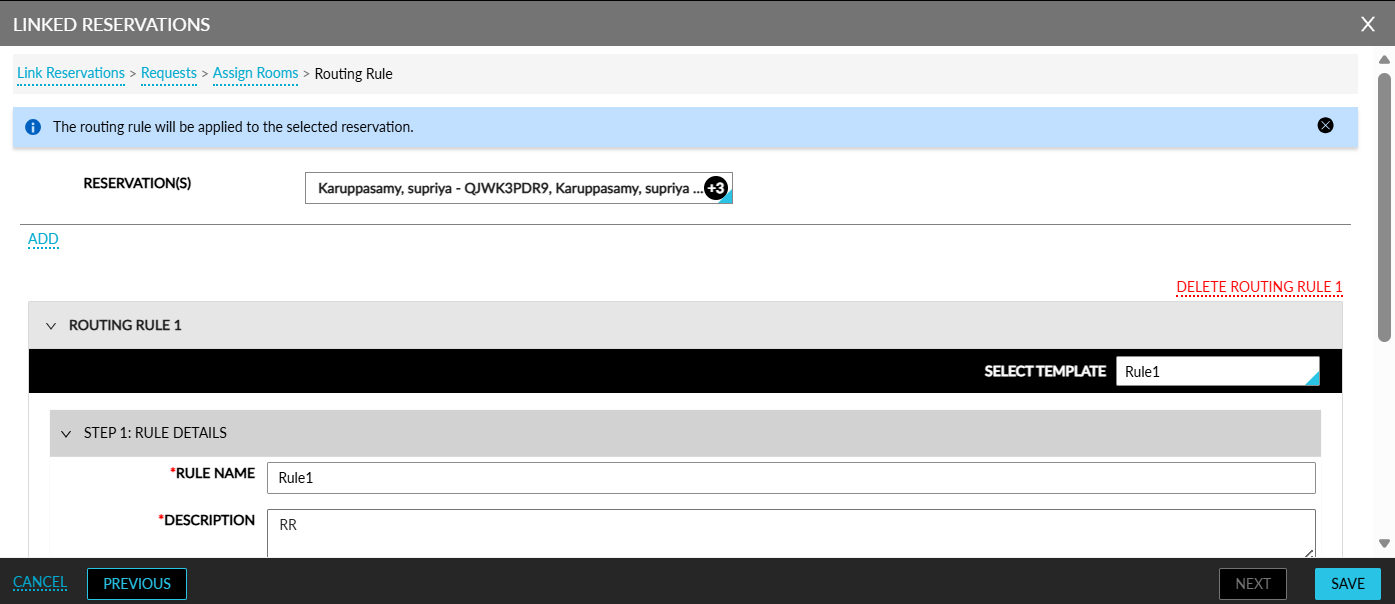
The Routing Rule section allows users to add routing rules. Users can add multiple routing rules by clicking the Add hyperlink. The routing rules can be deleted using the Delete Routing Rule (routing rule number) option. Users can select an existing routing rule template or crate a new template. Routing rules labelled as Credit type will not be available for selection. Only routing rules whose valid dates overlap with the linked reservation set will be displayed.
Valid dates will be determined using:
-
The earliest arrival date
-
The latest departure date
Reservations in the following statuses will be ignored when determining date ranges:
-
Departed
-
Cancelled
-
No-Show
Within the destination section of each routing rule, users cannot select the default folio of the reservation selected above. Clicking on Save will apply the selected preferences, assign rooms, and apply routing rules to the selected reservation.
Confirmation Tab
A new tab, Confirmation, will be displayed next to the Routing Rule tab. This tab will be displayed dynamically whenever there is a change in the auto recurring fee rules. The Auto Recurring Fees section in this tab will be displayed only when there is a change in the auto recurring fees. The following message will be displayed in this section: Room assignment might impact the auto recurring fees for the reservation. Select ‘Yes’ to update the fees or ‘No’ to continue with the current fees.
-
Clicking on Yes updates the auto recurring fee based on the current changes.
-
Clicking on No continues with the existing auto recurring fee configuration.
Room Summary Tab
When users modify the room assigned to a reservation previously, the Room Summary tab will be displayed. Each reservation with a room change will appear as a separate accordion. Each accordion will include:
-
Reason for Room Change section
-
Summary section
When the link set contains more than 15 reservations, the Room Summary tab will not be displayed, even if room numbers are changed.
When users click Save, the Link Batch Update pop-up screen appears that displays the following message: Batch Update for Link Reservation is in progress. The progress bar will be displayed in all reservations within the link set that are affected by the update process.
When a user exits the reservation and navigates back while the process is still running, the following message will be displayed: Batch Update for link reservation is in progress. Please wait for it to complete before making any changes.
Once the process is completed, a success message with a Click Here hyperlink will be displayed. When clicked, the results will be displayed across all reservations updated in the process in the Linked Reservations pop-up screen. This screen will display reservations where:
-
Room numbers were assigned
-
Room numbers were changed
-
Routing rules were added
The following columns are displayed in this screen:
|
Column |
Description |
|---|---|
|
Name |
The guest name associated with the reservation. |
|
Confirmation Number |
The confirmation number of the reservation. |
|
Arrival Date |
The arrival date of the reservation. |
|
Departure Date |
The departure date of the reservation. |
|
Room Number |
The room number assigned to the reservation. |
|
Room Status |
The status of the room assigned to the reservation. |
|
Reservation Status |
The reservation status. |
|
Program & Tier |
The loyalty program and tier associated with the reservation. |
|
Routing Rule |
The routing rules successfully added to the reservations. |
|
Failed Routing Rule |
The routing rules that failed during the update process. |
Check In Linked Reservations
When checking in a reservation that belongs to a linked reservation set, a Confirmation pop-up screen appears that displays the following message: This reservation is associated with linked reservations. Do you want to check in the other linked reservations also?
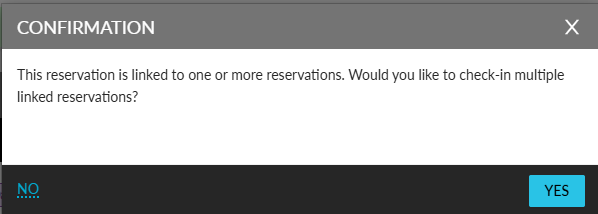
When users click Yes, the Check-In pop-up screen appears that displays the following sections:
-
Preferences
-
Assign Rooms
-
Routing Rule
-
Confirmation
-
Room Summary
-
Check-in
The following details are displayed in each section:
|
Section |
Description |
|---|---|
|
Preferences |
Displays preferences selected during the linking process. If preferences were not previously defined, users will have the option to assign preferences. |
|
Assign Rooms |
Displays already assigned rooms. If rooms are not assigned, users can assign rooms. |
|
Routing Rule |
Displays existing routing rules applied during link creation or batch update. When no routing rule exists, this section will not appear. Users can also perform the following:
|
|
Confirmation |
This section will appear dynamically when:
This section will be mandatory. The following message will be displayed: Room assignment might impact the auto recurring fees for the reservation. Select ‘Yes’ to update the fees or ‘No’ to continue with the current fees.
When a dirty room is assigned, the following message will be displayed: One or more selected rooms are not ready for check-in. Are you sure that you want to check in the guests into the room?
|
|
Room Summary |
This tab will be displayed when the user changes an already assigned room. Reservations with room number changes are automatically grouped into separate accordions. Each accordion includes the mandatory Reason for Room Change and Summary sections. |
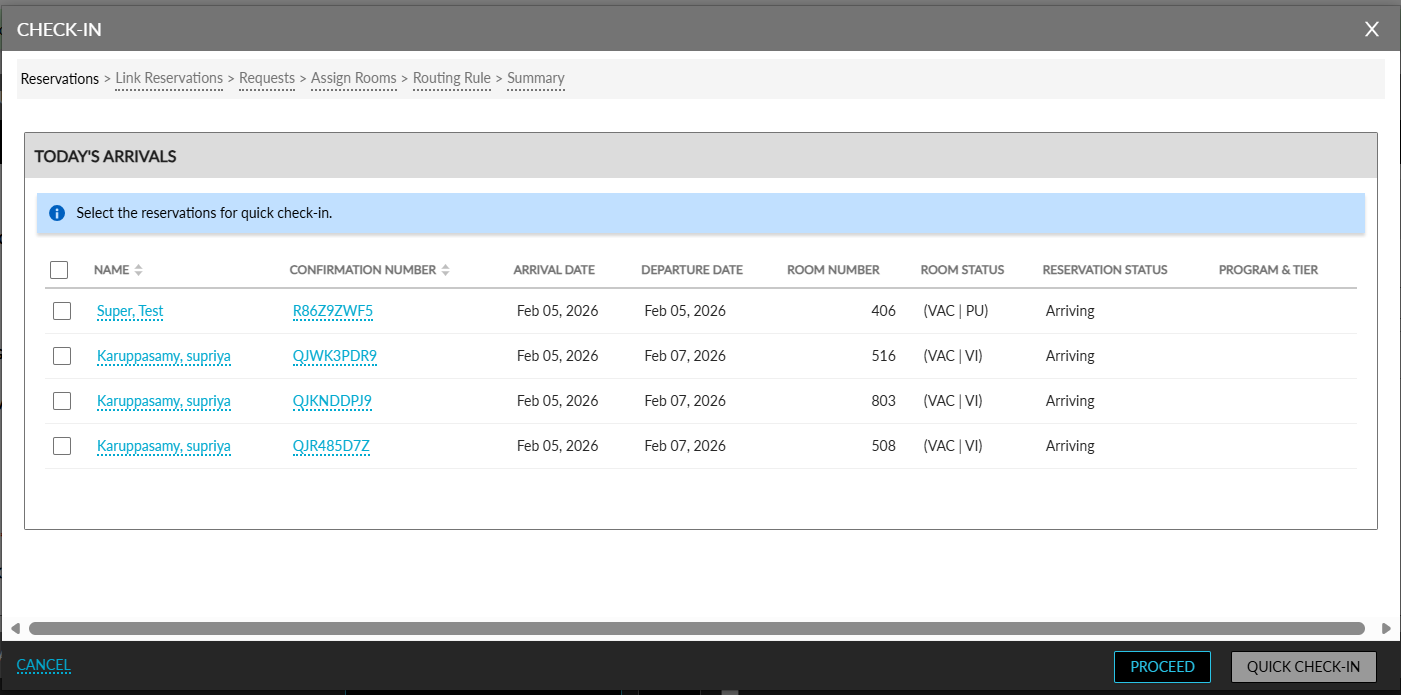
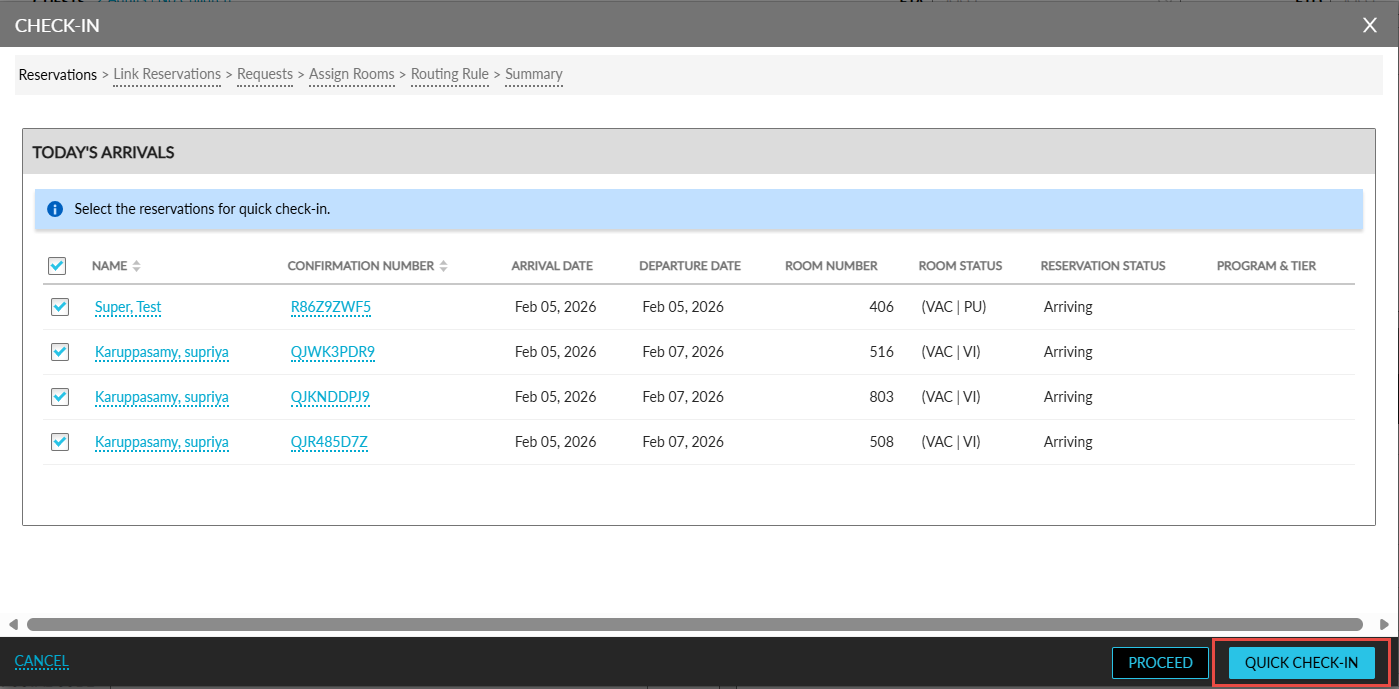
The Check-in tab displays the linked reservations arriving on the current property date and reservations in the Reserved status in the Today’s Arrivals and Future Reservations sections. The following columns are displayed in these sections:
-
Name
-
Confirmation Number
-
Arrival Date
-
Departure Date
-
Room Number
-
Room Status
-
Reservation Status
-
Program & Tier
The checkbox to select the reservations will be disabled when a room number is not assigned. When a reservation is already checked in, it will not appear in the table. Users can select the preferred reservations and click Check-in. When clicked, the Link Batch Update pop-up screen appears that displays the following message: Batch update for link reservation is in progress. Once the process is completed, the success message will be displayed along with the Click Here hyperlink.
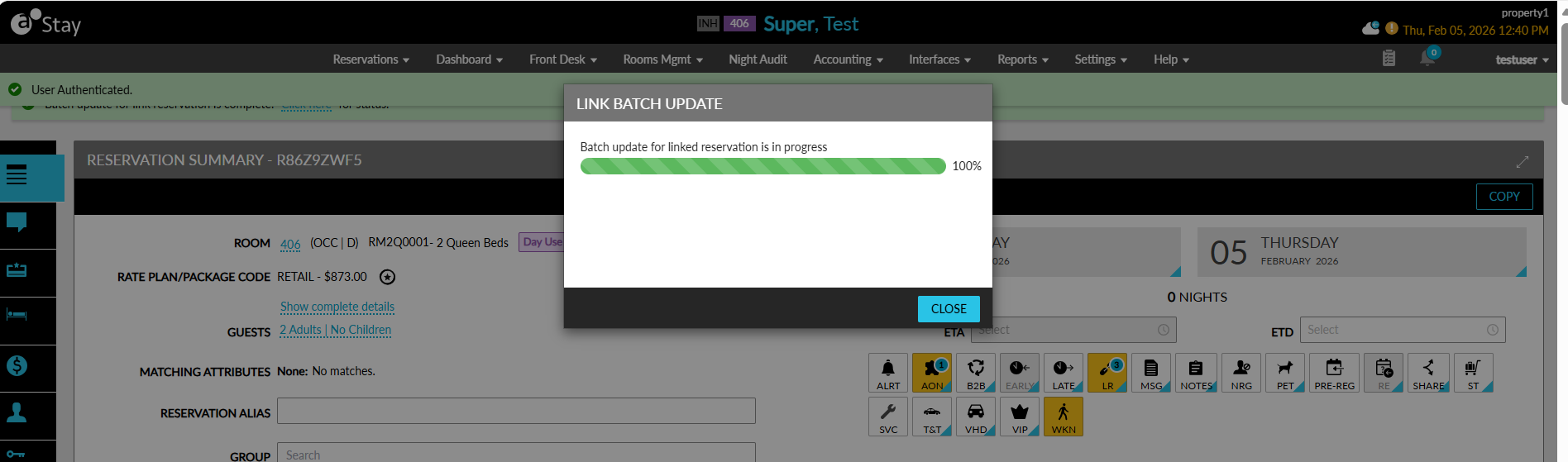
When the hyperlink is clicked, the Linked Reservations pop-up screen appears that displays the reservation details in the following columns:
|
Column |
Description |
|---|---|
|
Name |
The guest name associated with the reservation. |
|
Confirmation Number |
The confirmation number of the reservation. |
|
Arrival Date |
The arrival date of the reservation. |
|
Departure Date |
The departure date of the reservation. |
|
Room Number |
The room number assigned to the reservation. |
|
Room Status |
The status of the room assigned to the reservation. |
|
Reservation Status |
The reservation status. |
|
Program & Tier |
The loyalty program and tier details of the reservation. |
|
Check in Reason Failure |
Displays the reason for check-in failure. |
|
Routing Rule |
Displays routing rules added during the process. |
|
Failed Routing Rule |
Displays routing rules that failed during the update |
Users can perform bulk quick check-in for linked reservations using the newly introduced Quick Check-In option.
-
The Quick Check-In button is available for eligible reservations.
-
Users can select valid reservations and click Quick Check-In to begin the check-in process.
-
When any selected reservation has a dirty room assigned, a Confirmation pop-up screen appears. Selecting Yes checks in the reservation, while selecting No cancels the check-in for that reservation.
-
The Quick Check-In button is enabled only when at least one eligible reservation is selected. Otherwise, only the Proceed button is available.
-
When no reservations are eligible for check-in, the Quick Check-In button remains disabled.
Users can also use the Proceed button to continue with the standard check-in workflow.
-
Clicking Proceed completes the required check-in details process and navigates the users to the Request step.
-
After proceeding, the Reservation tab becomes unavailable.
-
When users select only some reservations and click Proceed, no action is taken on the selected reservations.
Assign Rooms to Linked Reservations
When assigning a room number to a reservation that belongs to a link set, a Confirmation pop-up screen appears that displays the following message: This reservation is associated with linked reservations. Do you want to assign rooms to other linked reservations also? When users click Yes, the Assign Rooms pop-up screen appears. Users can assign the preferred room in this screen.
When users click Save, the Link Batch Update pop-up screen appears that displays the following message: Batch update for link reservation is in progress. Once the process is completed, the success message appears along with the Click here hyperlink. When clicked, the Linked Reservations pop-up screen appears that displays the reservation details.
Assign Rooms for Shared Reservation
When a reservation is part of both a link set and shared reservation, and the shared reservation does not have a room assigned, the assigned room will apply to the entire share set. When a room is already assigned to a shared reservation, users cannot change the room number for any reservation within that share set.