Manage Shared Reservations
Stay is enhanced to provide users with the ability to control the charge distribution, rate overrides, bulk modifications, and primary reservation management within the Share Reservation screen.
To support this enhancement, the existing Auto Recurring Fee button in the Share Reservation screen (Reservation ➜ Reservation Summary ➜ Share badge) has been renamed as Charges. When clicked, the Charges pop-up screen appears that displays the following options for adding add-ons and auto recurring fees to reservations:
-
Entire Rate to Primary: Posts all per room charges for the share set to the primary reservation.
-
Split Rate: Splits per room charge equally across shared reservations for overlapping days.
When a new share set is created (either by adding an existing reservation or creating a new one), the charge split option selected at the time of creation will be automatically saved in the Charges section. Users can modify the selected option if required. Upon modification, the system will recalculate and redistribute all applicable per room charges accordingly.
The selected charge option applies when:
-
Adding an existing reservation to a share set.
-
Creating a new reservation within an existing share set.
-
Adding shared addon/access area from reservation summary.
In the Add Charge section, the split‑option button is disabled during both actions.
Sample Scenario
Consider three shared reservations (R1, R2, R3) with an add-on charge of $300 and the split option selected as Split Rate. In this case, the charges will be split equally as follows:
-
R1 = $100
-
R2 = $100
-
R3 = $100
When the user overrides R2 to 200:
-
R1 = $100
-
R2 = $200
-
R3 = $100
-
Total = $400
When the user modifies the split option to Entire Rate to Primary:
-
The total amount of all charges is calculated ($400).
-
The entire $400 will be posted to the primary reservation.
-
R1 = $400
-
R2 = $0
-
R3 = $0
If the user changes the split option back to Split Rate:
-
The system will split the total ($400) equally.
-
R1 = $133.33
-
R2 = $133.33
-
R3 = $133.34
The charges will be recalculated considering the current total amount across the share set.
Impacts of Modifying the Charge Split Options
The modifications made in the Charges pop-up screen will have an impact on the per room charges added through the following areas:
-
Batch Edit tab of the Batch Posting screen
-
Share creation
-
Adding existing or new reservations
-
Reservation Presets tab of groups
-
Individual reservation charges shared to the set
-
Auto recurring fees
-
Access area charges
Rate Override for Shared Reservations
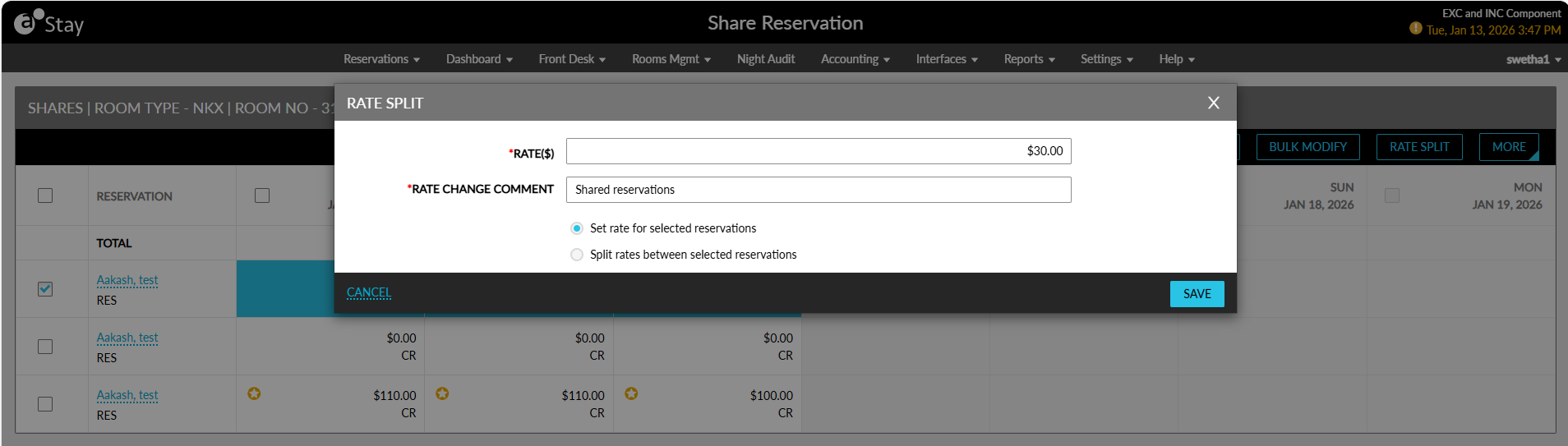
The Rate Split button in the Share Reservation screen will be enabled only when one or more reservations are selected. When clicked, the Rate Split pop-up screen will be displayed with the following fields:
-
Rate: Allows users to enter the overridden rate.
-
Rate Change Comment: The reason for the rate change.
-
Split Option: The options for split rate.
Split Options in Override
Users can select from the following options:
-
Set Rate for Selected Reservation: Applies the entered rate directly to each selected reservation.
-
Split Rate Between Selected Reservations: Splits the entered rate equally among all selected reservations. The Rate Split button and Room Type fields in the Modify Rates screen are enabled only when all reservations in the share set are selected. If only one reservation is selected, the Rate Split button is disabled.
When only one reservation is selected, the Split Rate Between Selected Reservations option will be disabled along with the Save button. Any overridden rate is treated as a fixed rate for that reservation.
When the share set is under the Entire Rate to Primary option:
-
Overriding a secondary reservation does not affect the primary reservation’s rate.
-
When the split option is changed later, redistribution is based on the primary reservation’s value.
Bulk Modify of Share Reservations
Users modify the reservations added to a share set in bulk using the Bulk Modify button in the Share Reservation screen. This button is disabled by default and will be enabled only when at least one reservation is selected. When users select the preferred reservations and click Bulk Modify, only the selected reservations will be displayed in the Modify Stay pop-up screen. Each reservation will be displayed in a separate accordion.
When the Same Rate Plan flag is enabled and only one reservation is selected, and when the reservation is not primary for any stay date, all rate plans will be disabled, and the rate plan can be changed only from the primary reservation.
When multiple reservations are selected and only one reservation is primary for specific dates:
-
The rate plan can be modified for those dates.
-
The updated rate plan will be applied to all shared reservations for that date.
-
Associated auto recurring fees and nightly charges will be recalculated.
When a change in the departure date results in the selected reservation becoming primary, the rate plan may then be modified.
When the Same Rate Plan flag is disabled and the selected reservation is not primary, the rate plan can be modified, and the modified rate plan will be applied to that reservation only.
Rate Split Logic During Bulk Modify
When the Entire Rate to Primary option is selected and the Same Rate Plan flag is enabled, the rate split is calculated as follows:
|
Option Selected |
Description |
|---|---|
|
When the Keep Current Rates checkbox is disabled and rate plan of primary reservation is modified. |
|
|
When the Keep Current Rates checkbox is enabled. |
|
When the Split Rate option is selected and the Same Rate Plan flag is enabled, the rate split is calculated as follows:
|
Option Selected |
Description |
|---|---|
|
When the Keep Current Rates checkbox is disabled. |
|
|
When the Keep Current Rates checkbox is enabled. |
|
When the Entire Rate to Each Sharer option is selected and the Same Rate Plan flag is enabled, the rate split is calculated as follows:
|
Option Selected |
Description |
|---|---|
|
When the Keep Current Rates checkbox is disabled. |
The new rate will be applied in full to each reservation. |
|
When the Keep Current Rates checkbox is enabled. |
|
When the Same Rate Plan flag is disabled,
-
Rate plan changes apply only to selected reservations.
-
When the Keep Current Rates option is enabled, only the rate plan is updated.
When users modify the departure date of selected reservations and the change results in breaking the share, the user will be informed about the same. Users can modify the primary reservation in a share set by clicking on the Mark as Primary checkbox. When the rate or charges are set to Entire Rate to Primary, the rates and charges will be recalculated and transferred from the existing primary reservation to the new reservation set as primary.
The addon, access area, routing rule and recurring charge from the new primary reservation will not be copied to the secondary reservation.
Break Reservations from Share
Users can break reservations is a share set using the Break from Share option (Reservation ➜ Reservation Summary ➜ Share badge ➜ More ➜ Break from Share). When a share set is broken, the following actions are performed:
-
A different rate plan and room type must be assigned to the reservation when the status of the reservation is In-House.
-
Each reservation will be processed independently.
Records Created for Modifications
Whenever shared reservations are modified, a record is created in the following areas:
-
Audit Log screen
-
Reservation History section