Matching Tables and Table Lookup Support for Rules
Stay is enhanced to allow users to create reusable tables containing input values and property codes for use in rule conditions and actions. Users can also manage duplicate and unmatched values and prevent changes to tables and columns that are referenced by active rules.
A new tab, Matching Tables, has been added to the Rules tab in the On-Premise Settings screen (Interfaces ➜ On-Premise Settings ➜ Rules). Users can create up to 100 matching tables. Each table includes the following fields:
-
Table Name: A unique name for the table. This field is mandatory and supports up to 64 characters.
-
Table Code: A unique code for the table. This field is mandatory and supports up to 16 alphanumeric characters and underscores.
-
Table Description: A description for the table. This field is optional and supports up to 250 characters.
Users can modify or delete existing matching tables.
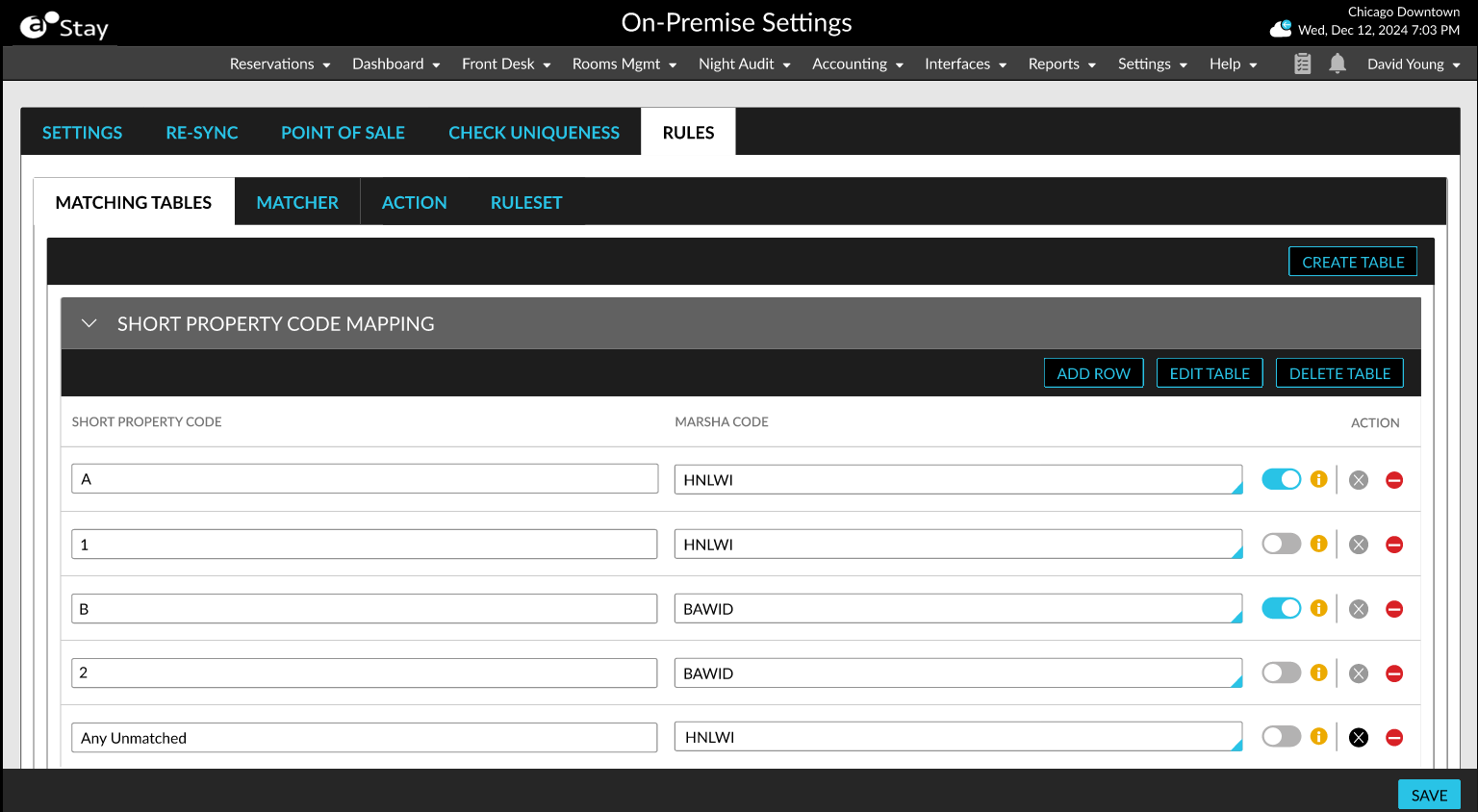
Table Columns
Users can add up to two columns to each matching table. At least one column must remain in the table. Each column name must be unique within the table and can contain up to 64 characters. The column type is mandatory and can be set to the following values:
-
Input Field
-
Property Code
Only one Property Code column can be added to a table. Only one column can contain duplicate values. By default, duplicate values are allowed in the first column, and values in the other column must be unique.
Table Rows
Users can add up to 500 rows to each table. After the maximum number of rows is reached, the option to add another row is disabled. For Input Field columns, users can enter values of up to 25 characters. For Property Code columns, users can select a value from a drop-down list displayed that contains the available property codes.
Duplicate Value Management
When duplicate values exist, a Use Row Values option is displayed for each duplicate entry. The repeating value is highlighted, and the following information message is displayed: Repeating Value: {{The duplicate value}}. Use values from other columns in this row when matching this value.
Duplicate entries are treated as a group. Users must select one entry in the group as the row whose corresponding values must be used.
Only one Use Row Values option can be enabled within each group. It cannot be cleared without selecting another row. Enabling the option for a different row automatically clears the previous selection. When no row is selected, users are prompted to select a row as the default value for the group.
Any Unmatched Value
For an Input Field column, users can add an Any Unmatched Value entry. This entry is displayed in a different font and is used when no other value in the table matches.
Only one Any Unmatched Value entry can be configured for each column.
Protection for Tables Used in Active Rules
Users cannot delete a table or column referenced by an active rule. When users attempt to delete a column used in a matcher or action, the following message is displayed: Tables used in Matchers or Actions.
When users attempt to delete a table used by an active matcher or action, the following message is displayed: Tables used in active Matchers or Actions.
When users attempt to activate a rule that references a deleted table or column, the affected field is highlighted with a red border.
Matcher Enhancements
A new IN comparison operator is available when configuring conditions for string or number values.
When the IN operator is selected:
-
Only table or list fields are available for selection.
-
The selected field must contain a list of values.
-
When the Message Field, Request Message Field, or Table is selected, only fields containing a list of values are displayed.
Table Lookup for Matchers
A new Table Lookup operation is available for string and number fields. Users must select the following values:
-
Table Name
-
From Column
-
To Column
When the From Column contains multiple matching values, the Use Row Values selection determines which corresponding value is retrieved.
When a value does not have a match, the corresponding Any Unmatched Value entry is used. The value remains unchanged when an unmatched value is not configured or when the To Column returns the unmatched value.
IN Comparison
The IN-condition checks whether a single string or number exists in a target list. When list comparisons are configured, only list values are displayed on the right side of the comparison.
Table Lookup for Actions
A new Table Lookup operation is also available when configuring rule actions. Users must select the Table Name, the From Column used to find a matching value, and the To Column from which the corresponding value is returned.
Rules Screen Updates
The Rules screen (Interfaces ➜ On-Premise Settings ➜ Rules) includes the following enhancements:
-
A new search option has been added that allows users to search for Matchers, Actions, and Rules by their respective names and codes.
-
A new column, Active, has been added in the ruleset that displays whether each rule is Active or Inactive.