Print and Email Documents from Documents Section
Stay is enhanced to allow users to print or email the documents available for reservations directly from the Document Attachment section without having to download the document first.
Previously, users could not print or email the documents provided for reservations directly from this section.
To support this enhancement, two new icons, Email and Print, have been added to the Document Attachment section of reservations.
When users click on the Print icon, the Print Preview pop-up screen appears that allows users to preview the settings and print the selected documents.
When the Email icon is clicked, the Email pop-up screen appears. The following fields are displayed in this pop-up screen:
|
Field |
Description |
|---|---|
|
Destination |
This is a mandatory multi-select drop-down list that displays the email addresses configured when creating the profile/reservation. The email address that is marked as Use this Email will be selected by default. Users can select the preferred addresses to which the selected document must be emailed. |
|
Others |
This checkbox must be selected to provide alternate or additional email addresses to which the selected document must be emailed. An information icon next to this field displays the following message when hovered upon: Enter valid email addresses separated by either a comma or semi-colon. |
|
Alternate Email Addresses |
When the Others checkbox is selected, the text box displayed below the checkbox is enabled. Users can enter multiple alternate email addresses separated by a comma or a semi colon in this field. This field is greyed out when the Others checkbox is not selected. |
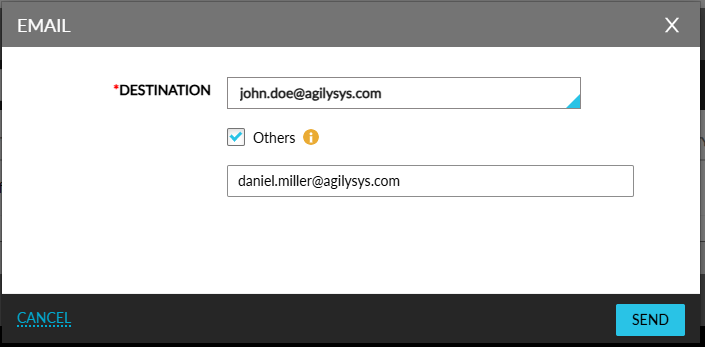
When users click Send, the selected documents will be emailed to the email addresses provided in the Email pop-up screen.
Videos