Stay Login Screen Enhancements
The following UI enhancements have been made in Stay to provide users with a streamlined login experience that guides them through the appropriate sign-in process based on their customer and login configuration in Agilysys Platform:
-
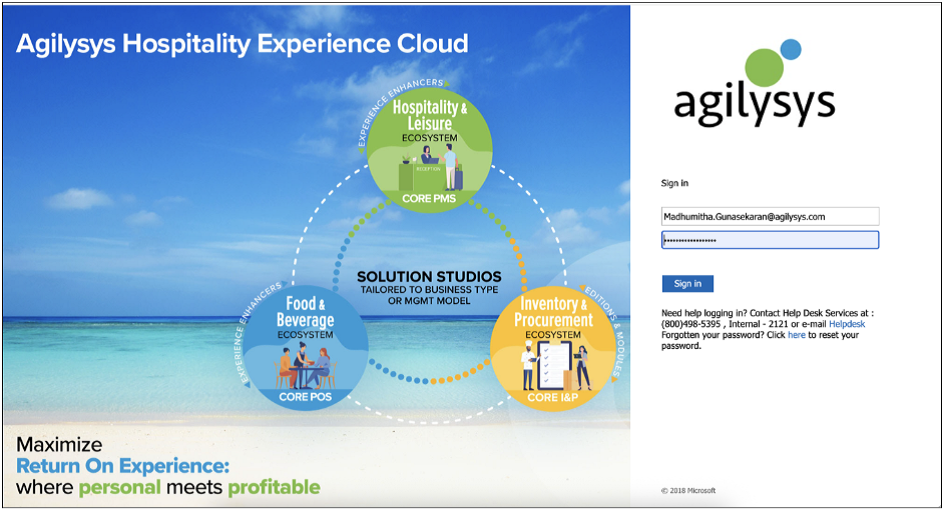
The login page is updated to display the appropriate logo and visual theme when users access the application.
-
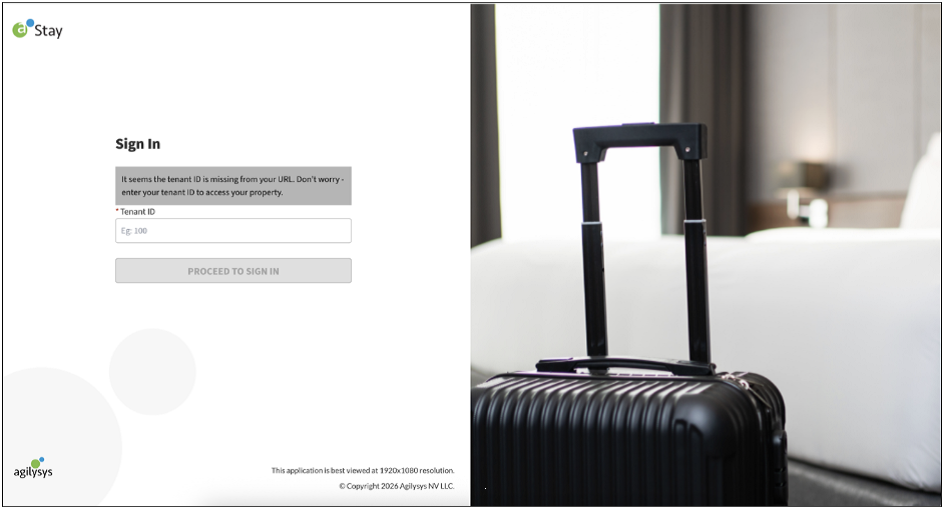
When the entered URL does not include a customer ID, users are prompted to enter the ID before continuing with the login process.
-
The entered customer ID is validated to determine the appropriate region. For customers mapped to multiple regions, users are automatically redirected to the appropriate region to continue signing in.
-
After the customer is identified, the login experience is determined based on whether Single Sign-On (SSO) method is enabled:
-
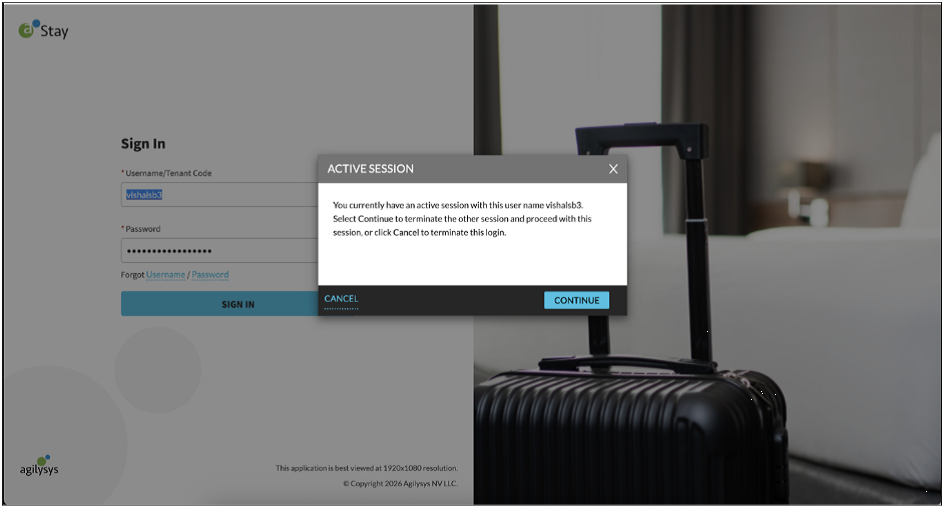
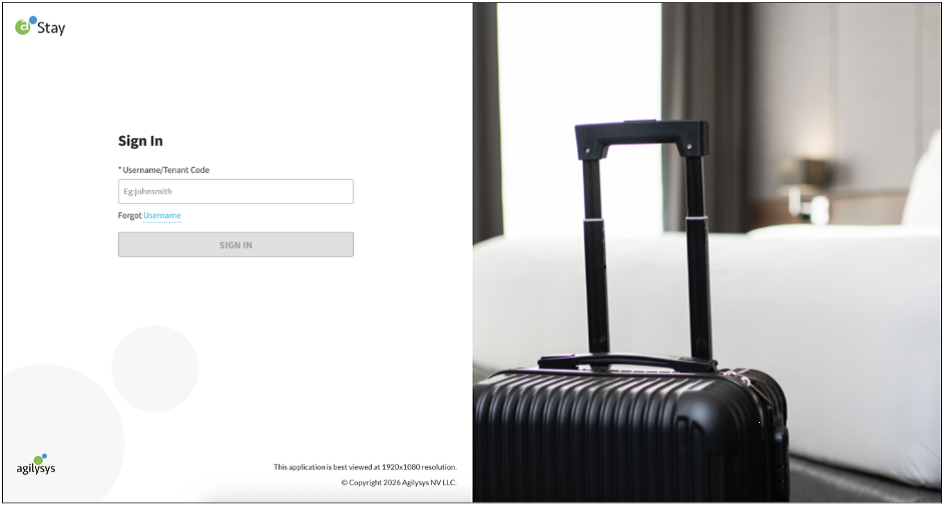
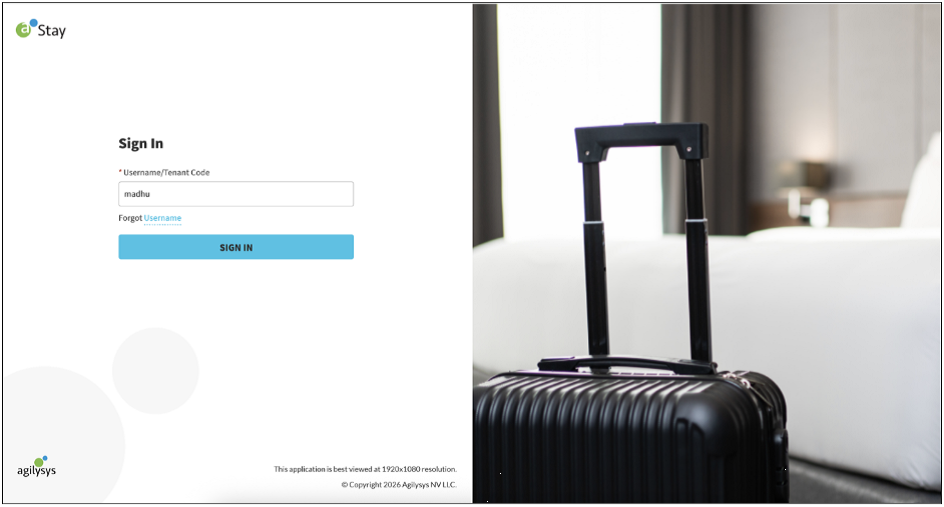
For customers with SSO enabled, users must enter only their username and are redirected to the configured SSO provider for authentication. After successful authentication, users are signed into the application.
-
For customers without SSO enabled, users must enter their username and password to sign in.
-
-
After the user's credentials or SSO authentication are validated, any additional authentication requirements configured for the customer are applied:
-
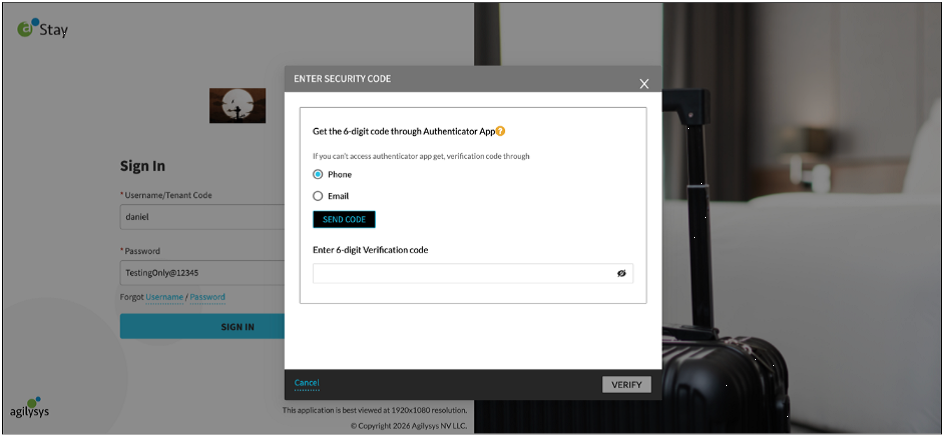
When Multi-Factor Authentication (MFA/2FA) is enabled, users are prompted to enter the required MFA code.
-
When security questions are enabled, users are prompted to answer the configured security questions.
-
-
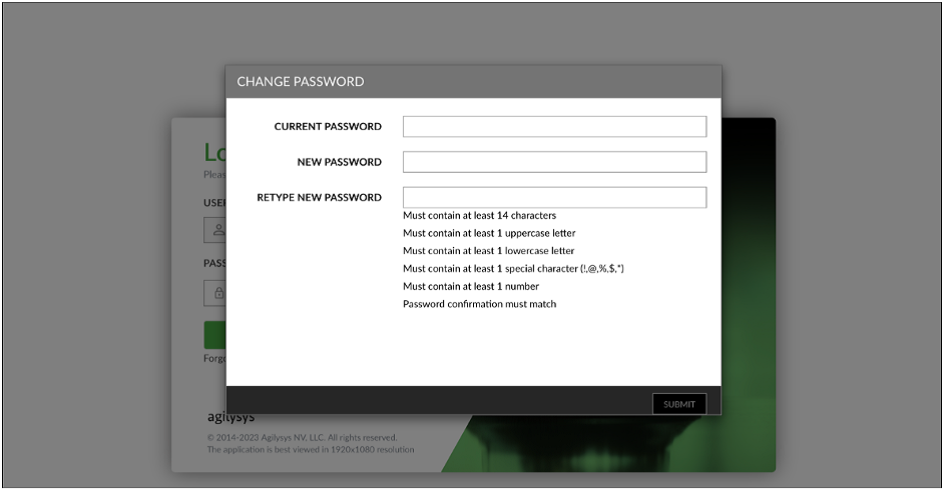
For a first-time login, users are prompted to change their password after completing the required authentication.
-
After all required login validations are completed, the following actions are performed:
-
Service users are directed to the service user home page to select the required tenant. This flow supports service accounts with and without SSO.
-
Business users are directed to the applicable application home page.
-
-
For SSO users with a configured default page, the applicable default page routing is applied after authentication.
-
The updated login experience also covers the following areas and scenarios/workflows:
-
Tenant ID selection
-
Sign In
-
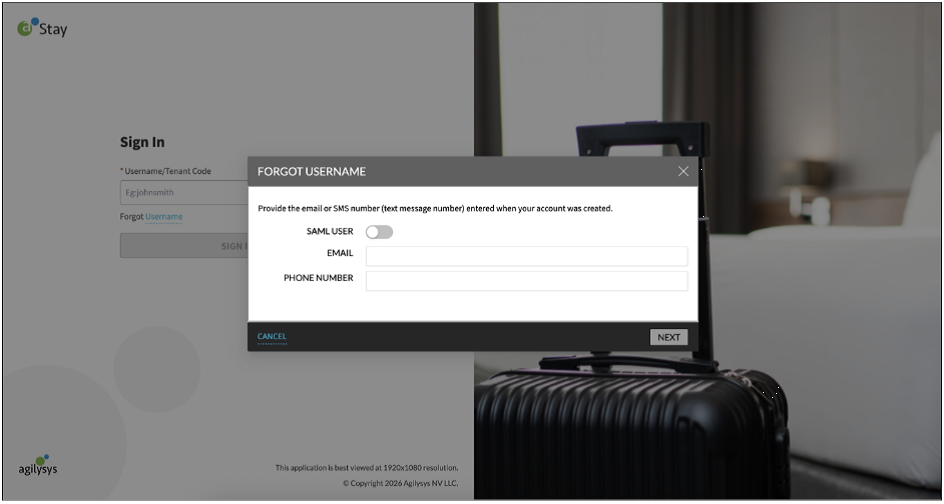
Forgot Username
-
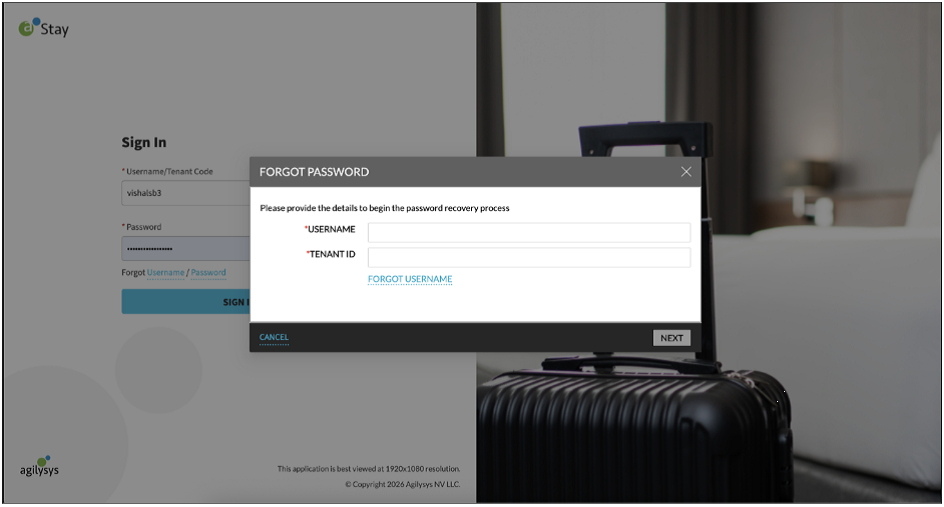
Forgot Password
-
Service accounts
-
Service accounts with and without SSO
-
2FA/MFA
-
Change Password for first-time login
-
Single Sign-On (SSO)
-
SSO with default page routing
-
Multi-region redirection
-
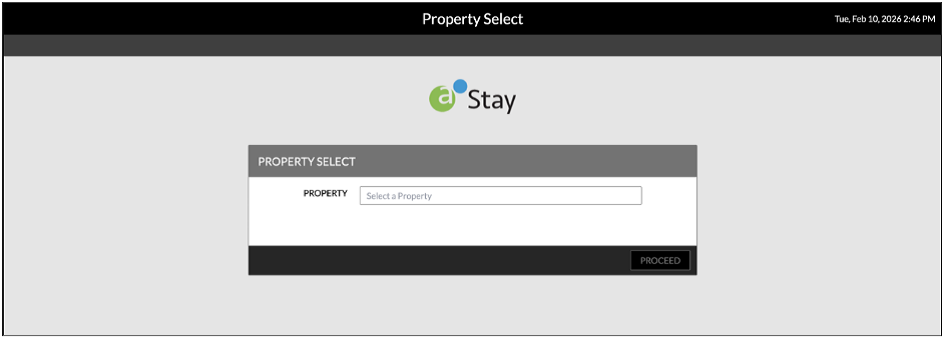
Property Select
-
Concurrent Users
-
Restricted Login
-
Sign Out
-
Manager Login
-
Password Expired
-
Impacted Areas
Tenant ID Selection
Sign In
Forgot Username
Forgot Password
2FA
Change Password for First Time
Single Sign On (SSO)
Multi-Region Redirect - Property Select
Concurrent Sessions