Support for Included and Excluded Components in Groups
Stay is enhanced to allow users to specify whether the components added to a group rate plan are Included or Excluded. This enhancement provides greater flexibility in defining how the prices of fixed, allowance, or add-on components are applied to the overall room rate.
When a component is defined as Included, its price is included in the group rate.
For example, for a group rate plan with a base rate of $500, when a component, Breakfast, is added with a cost of $50 and marked as Included, the component’s rate is treated as part of the total amount. In this case, the nightly room rate becomes $450, with the Breakfast component making up for the remaining $50 of the total rate.
When a component is defined as Excluded, its price is added on top of the group rate and is not included in the total amount.
For example, for a group rate plan with a base rate of $500, when a component, Parking Fee, is added with a cost of $50 and marked as Excluded, the component’s rate is not treated as part of the total amount. In this case, the nightly room rate remains $500, and an additional $50 is charged for the Parking Fee component, resulting in a total rate of $550.
Feature Setting
The existing Add Group Components feature setting must be enabled to use this feature.
The room block rate in a group is considered as a group package rate when there are included and exclusive components added to the group.
Define Pricing Inclusion/Exclusion of Components
When users add components to a group (Group ➜ Room Blocks ➜ Components ➜ Add Components), a new column, Pricing, has been added to the Add pop-up screen that allows users to define the pricing inclusion/exclusion of the components.
The options are available for selection in this column based on the option selected for the component in the Options column. When users select the option as Mandatory, both Included and Excluded options are displayed in the Pricing column. When the component is configured as Optional, only the Excluded option is displayed.
The following messages are displayed as a banner in this pop-up screen along with an information icon:
-
Included - Use this when the component's cost is included in the package rate.
-
Excluded - Use this when the component's cost is not included in the package rate.
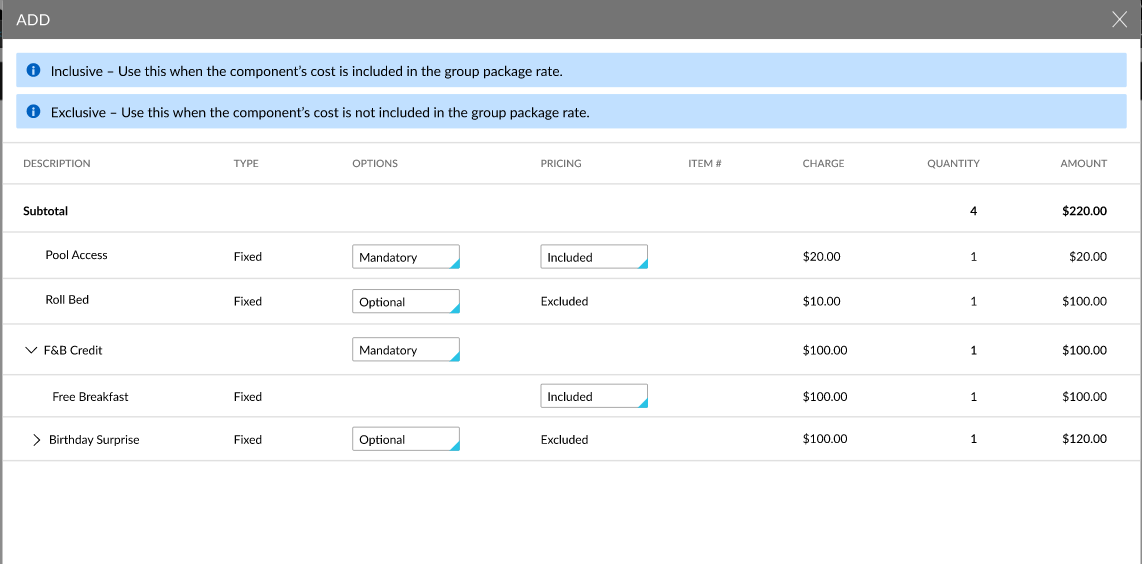
Users can also define variable pricing for the components. Previously, the Components amount based on date range option was displayed in the Frequency section of the Add pop-up screen. Now, when users select the preferred frequency for the components and click Next, a new section, Pricing, will be displayed.
Users can configure variable pricing for the components by clicking on the Add hyperlink in this section.
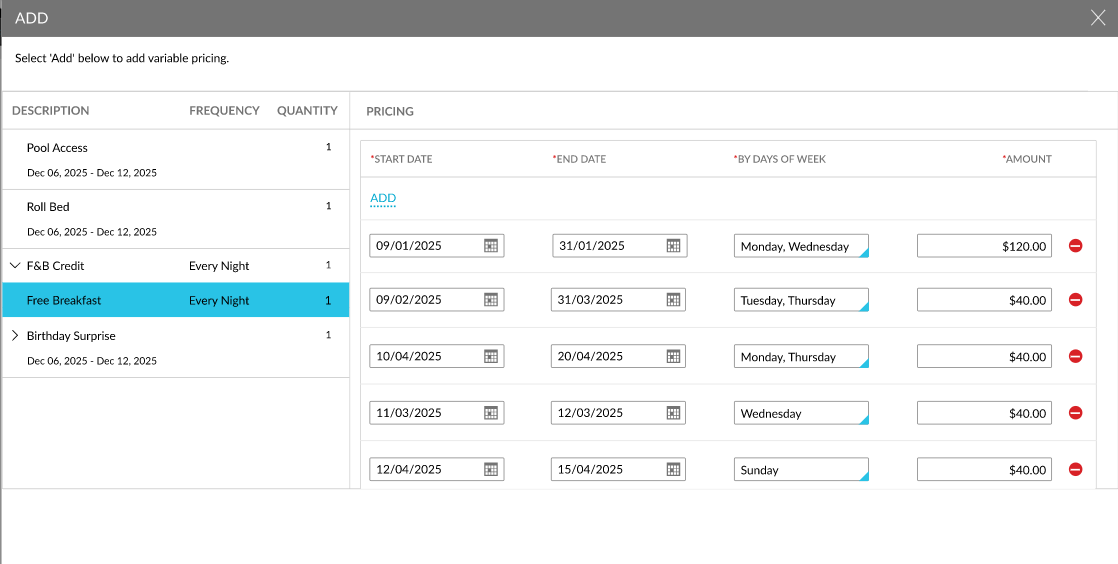
When clicked, the following fields and columns are displayed:
|
Field |
Description |
|---|---|
|
Start Date |
This is a mandatory field that allows users to select a start date within the effective dates of the group including the shoulder dates. The variable price configured will be applied from the selected date. |
|
End Date |
This is a mandatory field that allows users to select an end date up to which the variable price configured must be applied. |
|
By Days of Week |
This is a mandatory multi-select drop-down list that displays the days of the week based on the selected date range. Users can select the preferred days on which the variable pricing must be applied. |
|
Amount |
This is a mandatory field that allows users to define the amount to be charged for the components for the selected date range and days. |
Multiple prices can be configured for different date ranges using the Add hyperlink. When users try to configure variable prices for an overlapping date combination, the following message is displayed: Rates have been configured for specified days. Users can delete the price configured for a date range using the delete icon.
The variable prices configured are applied for the selected date range and days of the week. For example, when a component in a package is set with a variable price of $50 for the weekends, and when the reservation is booked for the weekend, the guest is charged a price of $50 for the component instead of the base price.
Variable prices can also be configured for allowance components. The charge of the allowance component can be defined as either inclusive
When users modify the components added to a group, the following validations are performed:
-
When the effective dates of the group are modified and the add-ons are inactive for the entered dates, the following message is displayed: One or more group Add-Ons are inactive for the selected dates.
-
When users deselect the System Configuration Only checkbox for the add-ons associated with a group, the following message is displayed: The add-on is added as part of configuration and cannot be edited.
-
When users try to inactivate the add-ons associated with a group, the following message is displayed: The add-on is added as part of configuration and cannot be edited.
The mandatory and optional components added as part of the group and defined as inclusive or exclusive are tracked in the Group History section of the Group Booking tab. Both the inclusive and exclusive components will be available for the shoulder dates of the group and applied to all reservations booked for the group.
When a group is copied, both the inclusive and exclusive components added as part of the group will be copied. The inclusive and exclusive components added as part of the group will also be added to the reservations created through the reservation import sheet using the group rate plan.